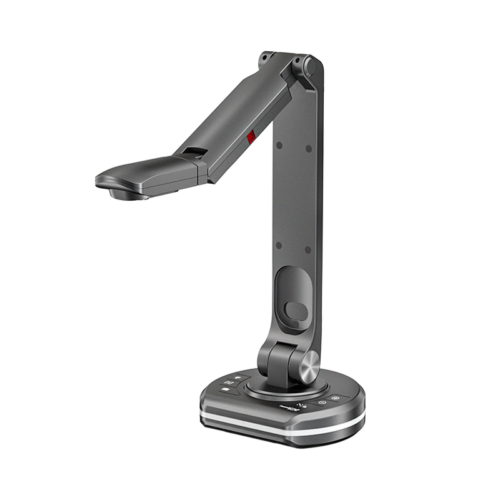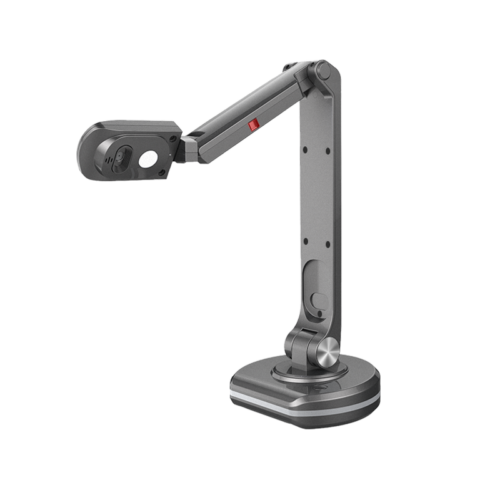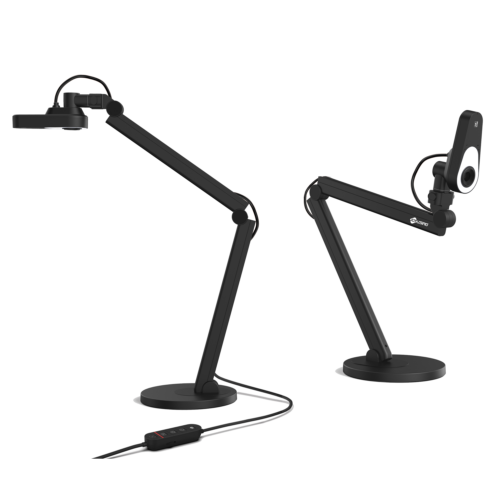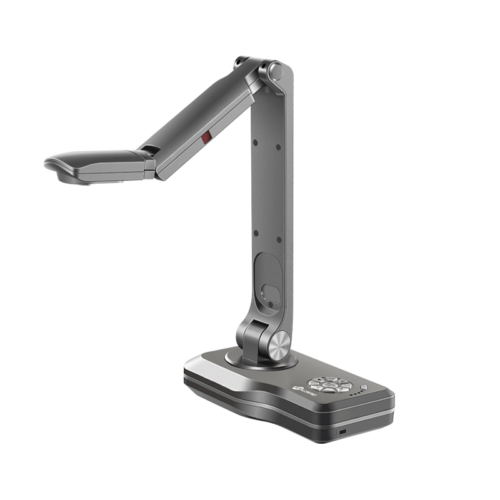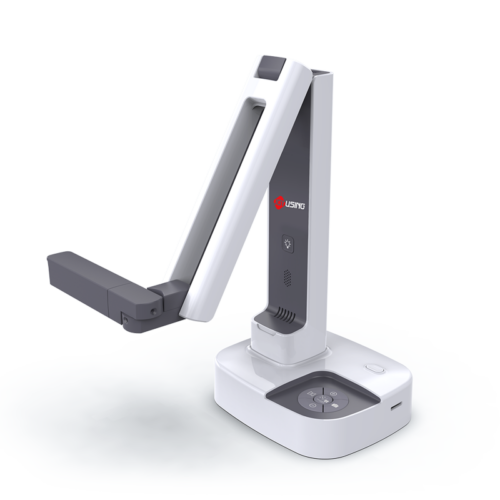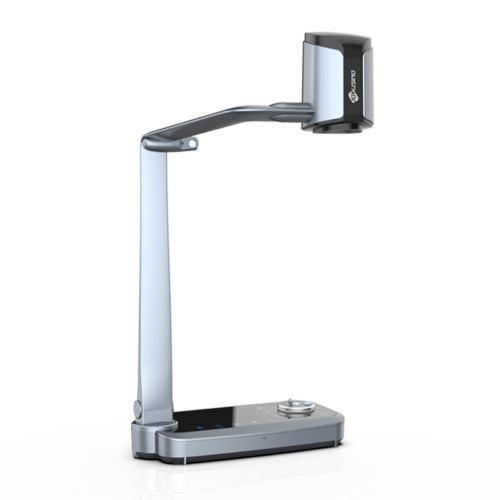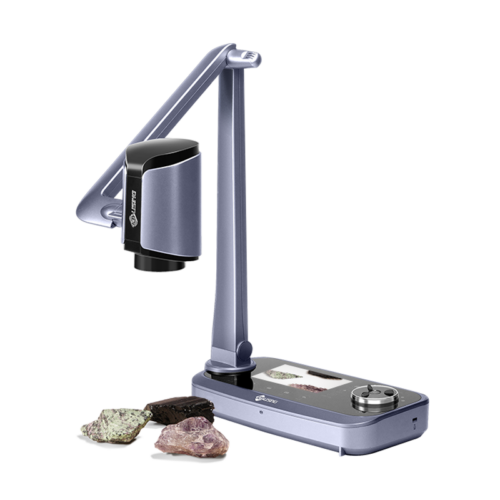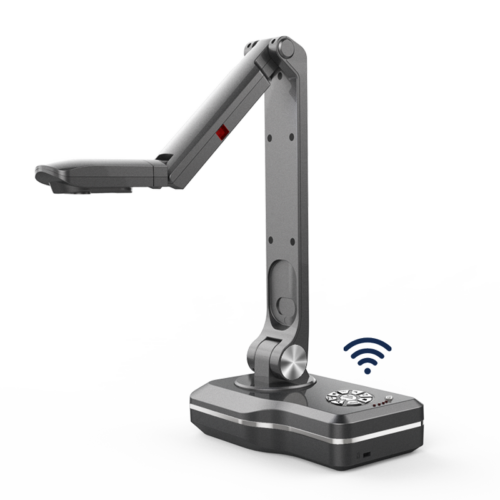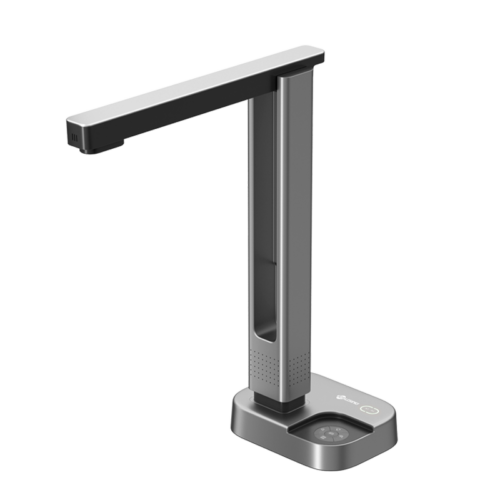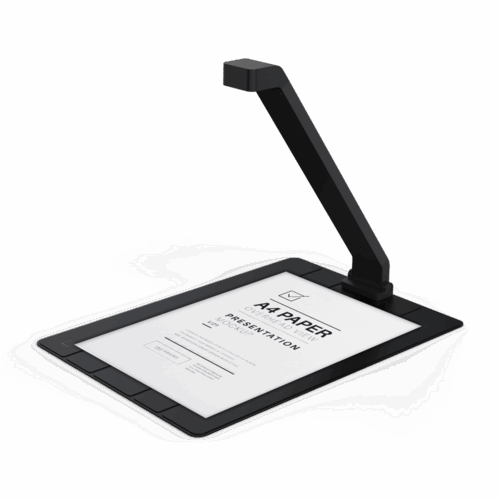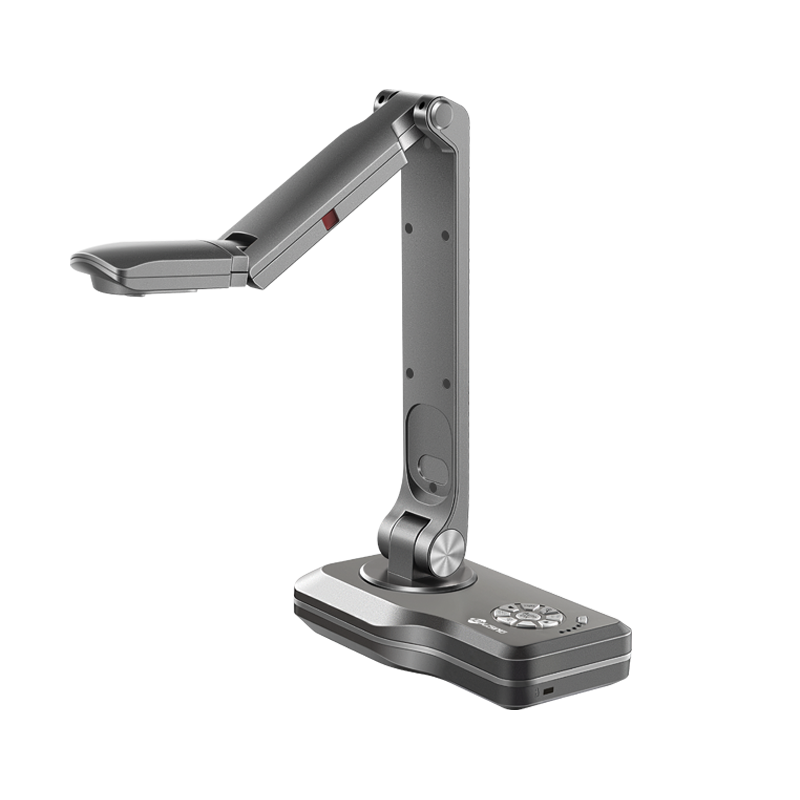
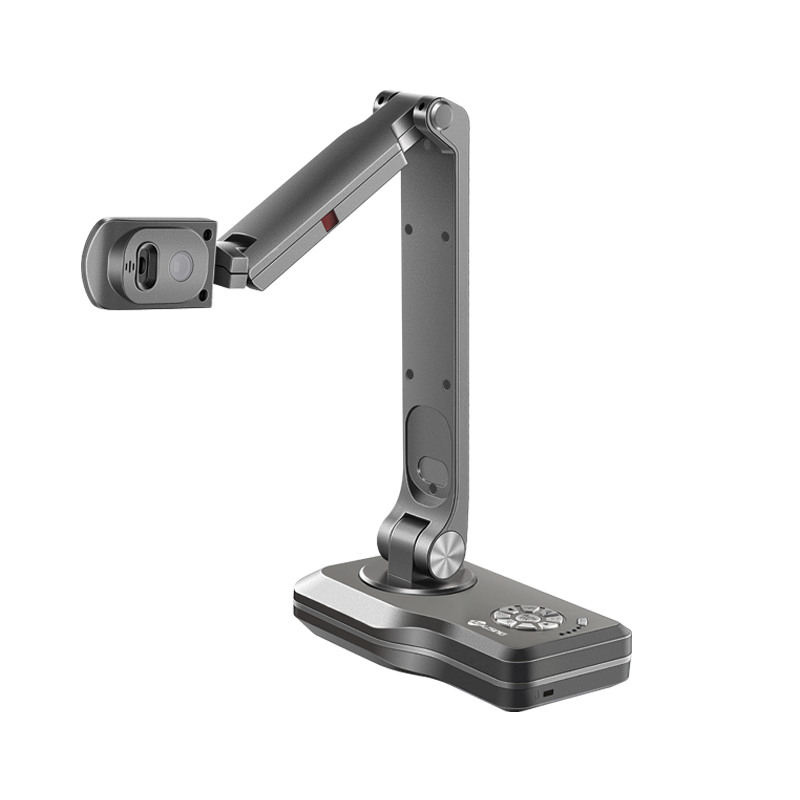
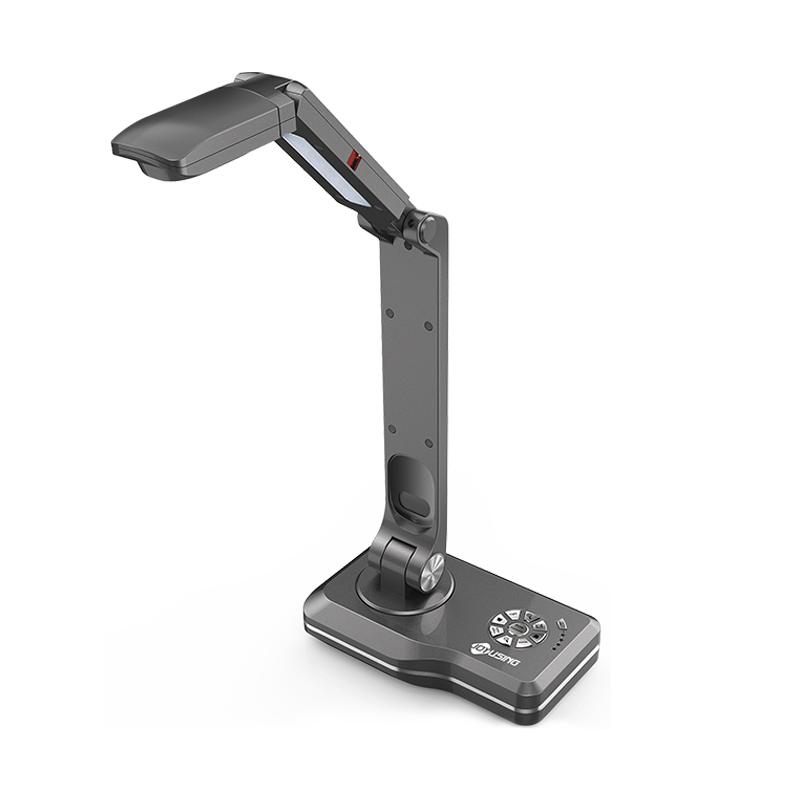
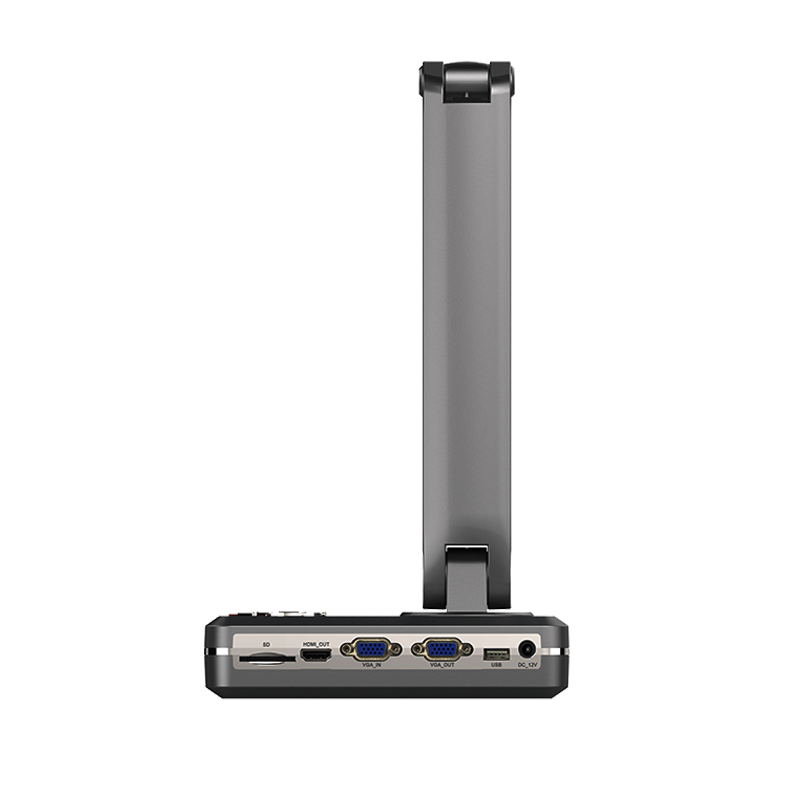
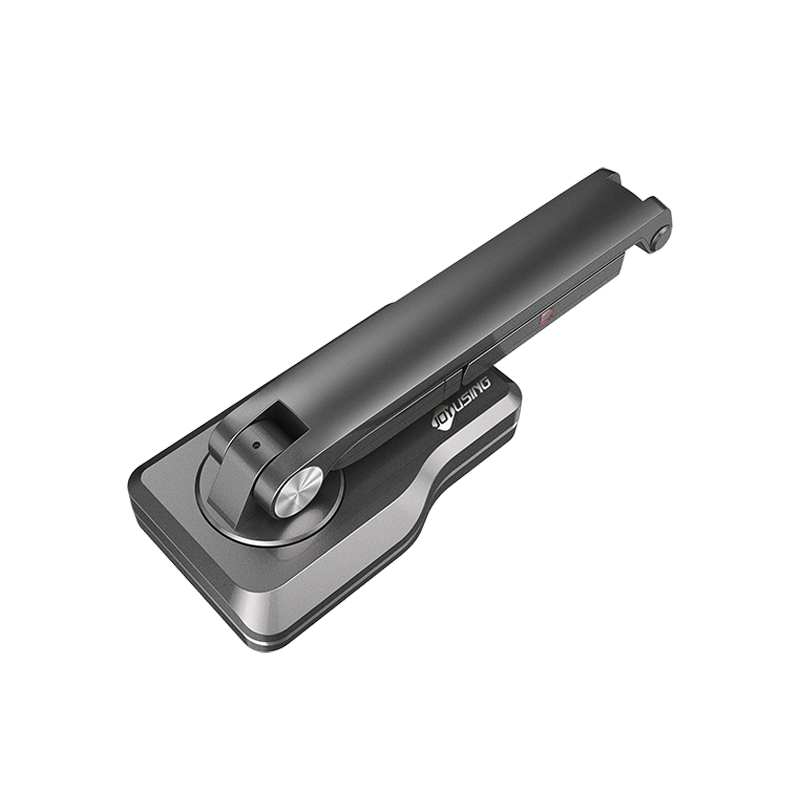
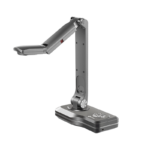
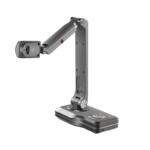
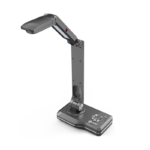
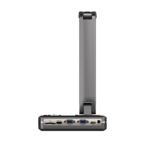
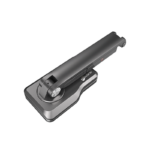
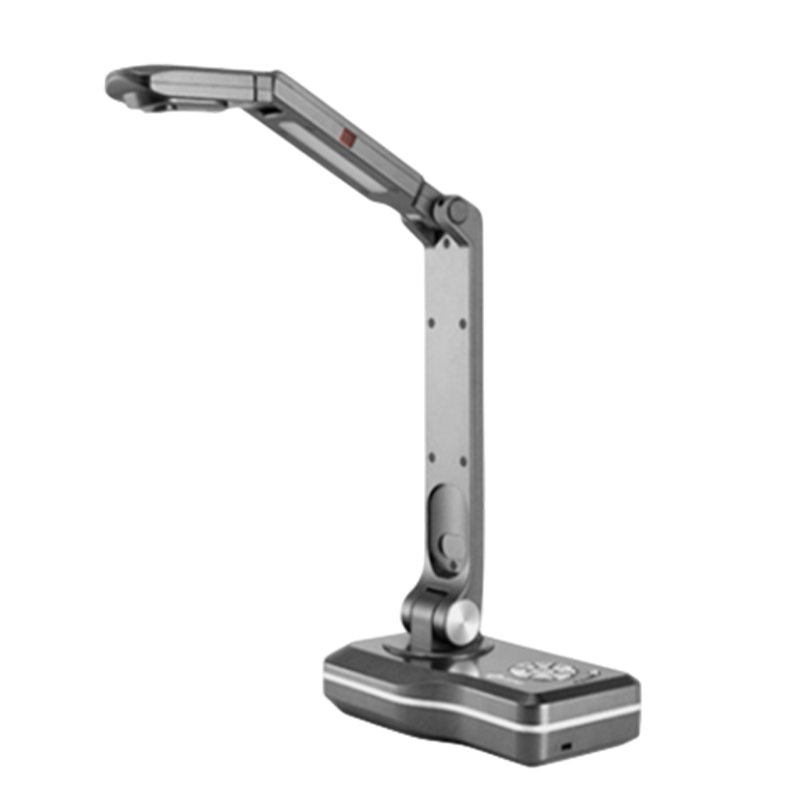
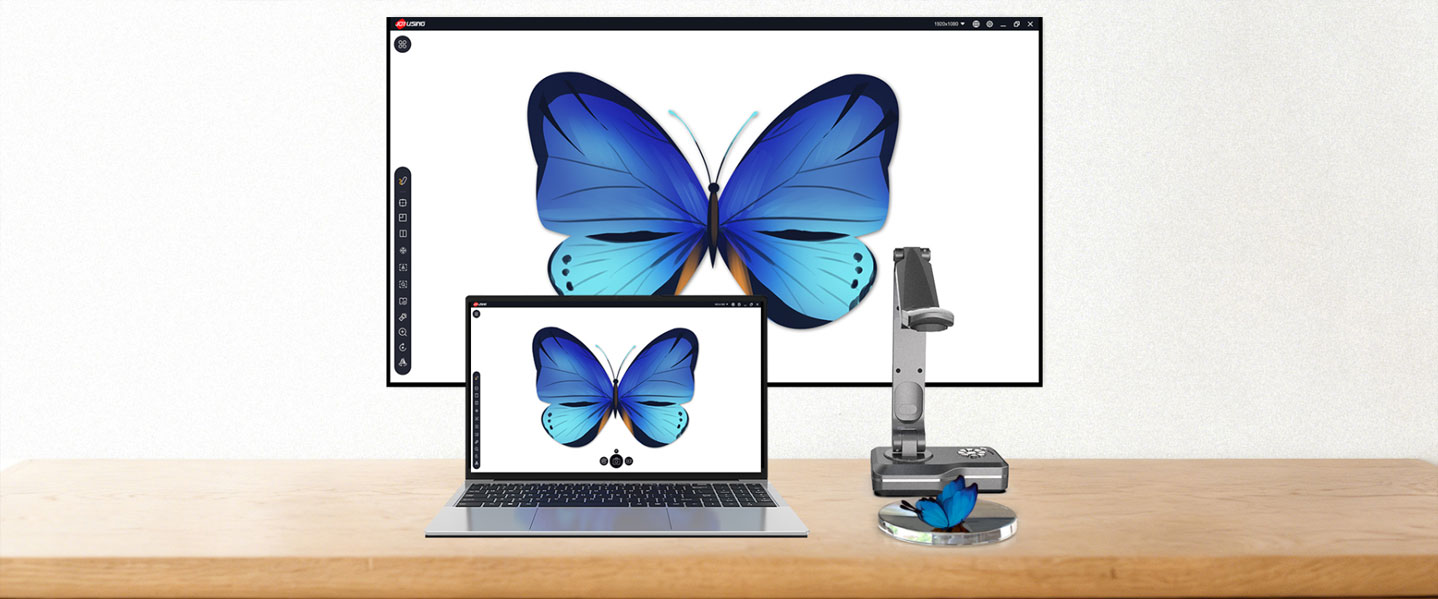
Joyusing V500 is PC free document camera with 8.0MP and 1080P resolution. Connect it to an interactive panel, monitor, or projector via HDMI/VGA, and you'll be able to present your materials via a big screen without using a computer.
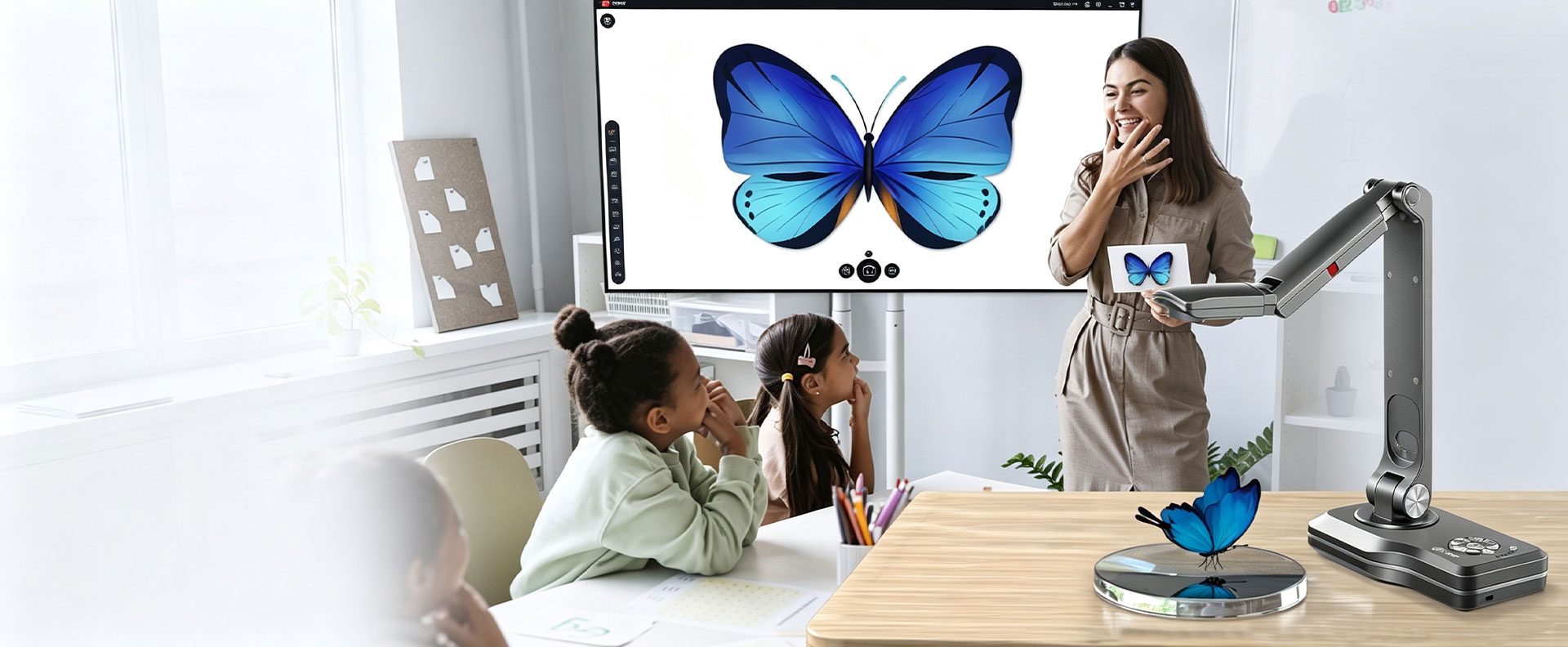
PC Free Document Camera
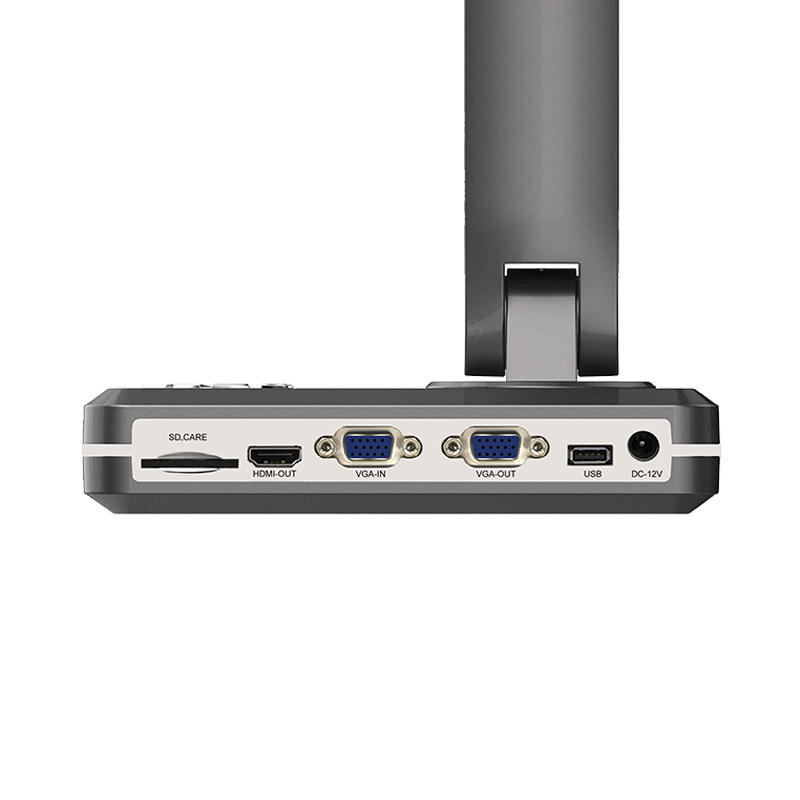
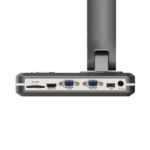
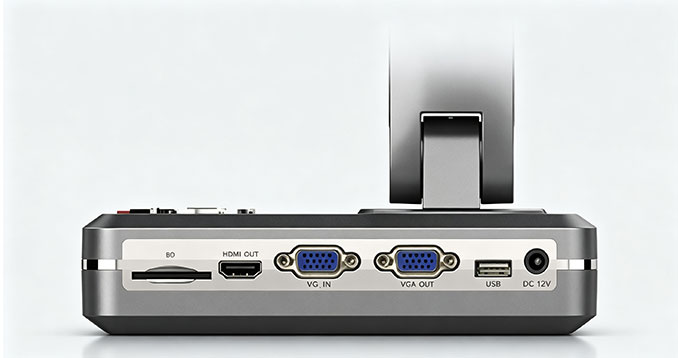
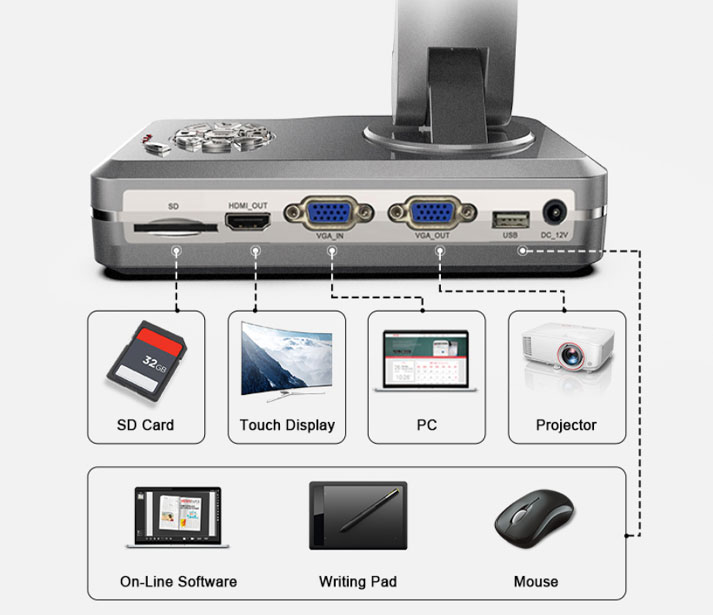
HDMI, VGA and USB Connectivity
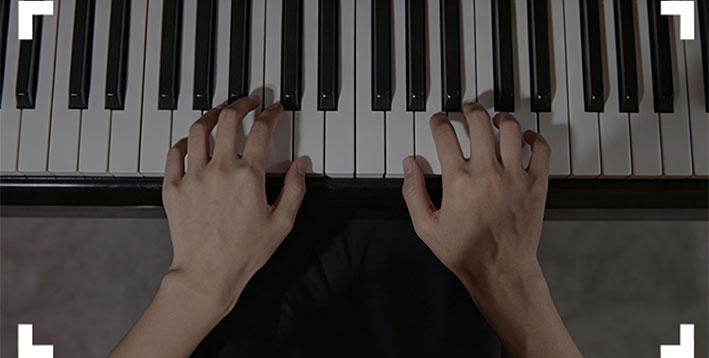
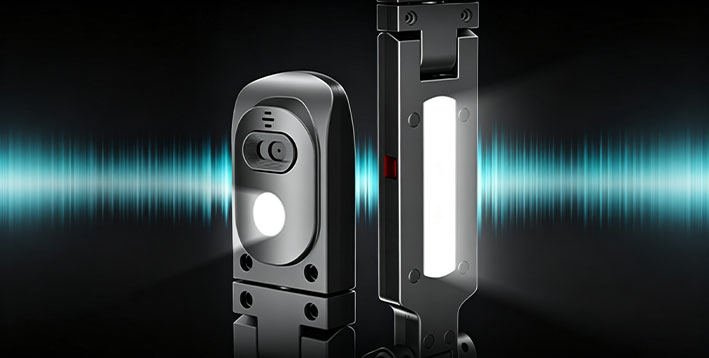
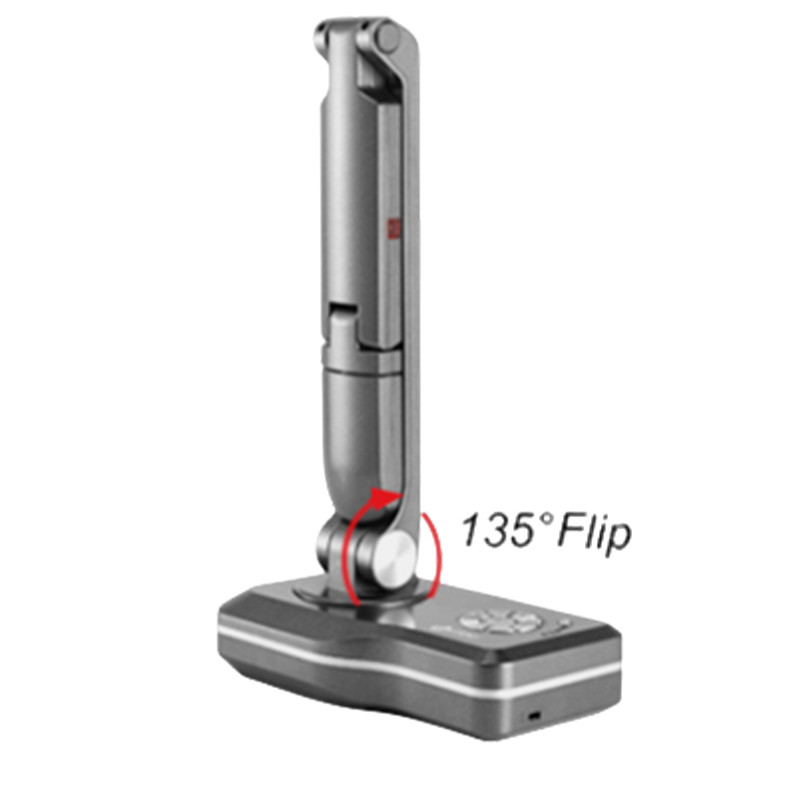
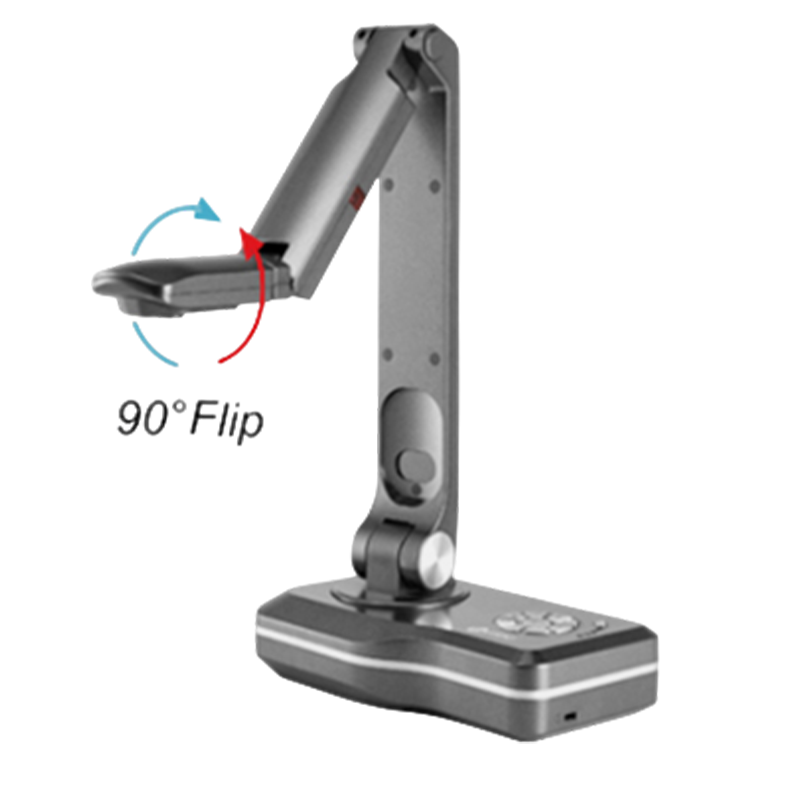
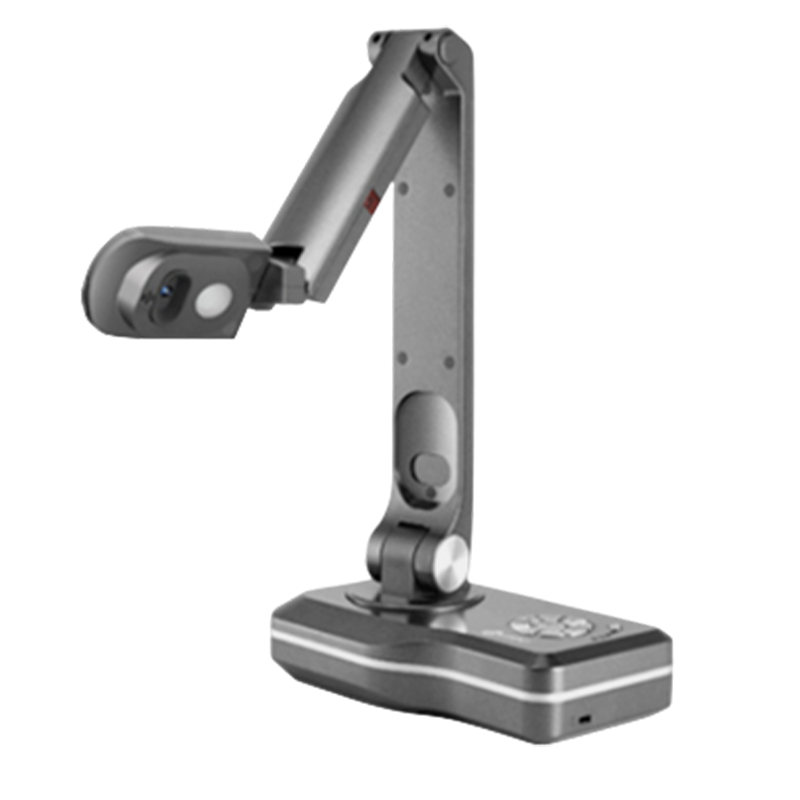
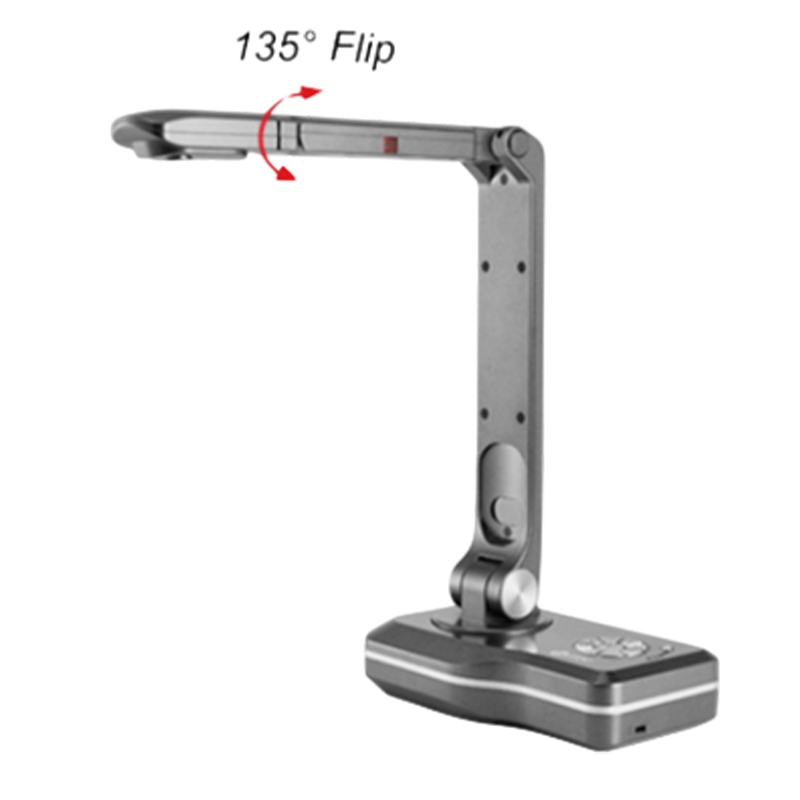
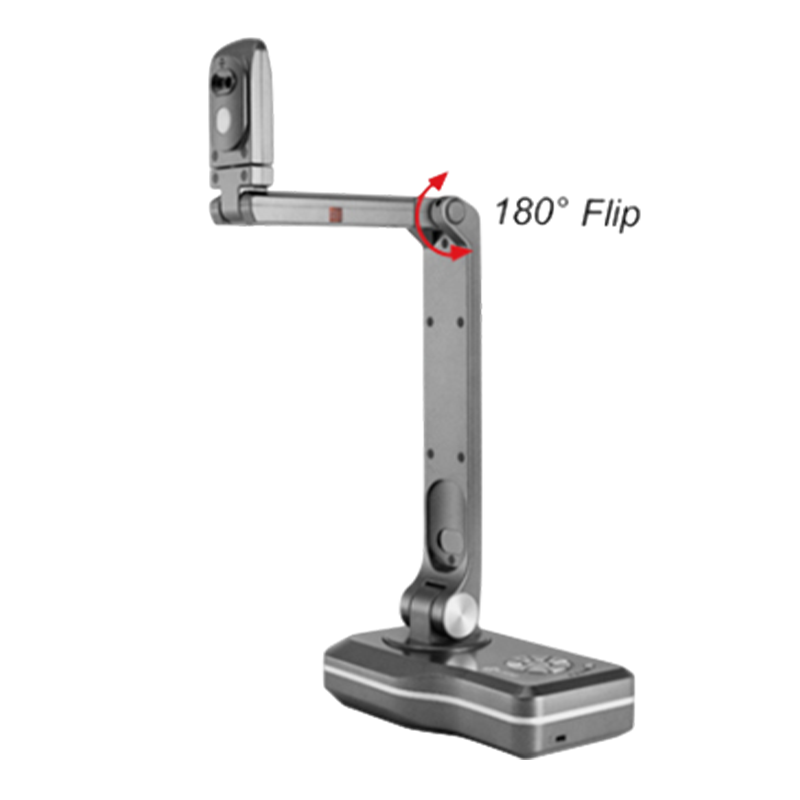
The rotatable camera head makes it possible to adjust quickly and capture your content from different heights, angles, and orientations. Highly adjustable of multi-joints allow you to display 2D and 3D Objects in a flipped classroom and blended classroom.

High-Definition Digital AV

Plug-and-Play Connectivity

Universal Analog Compatibility
Plug and play, direct HDMI connection to a TV or projector.
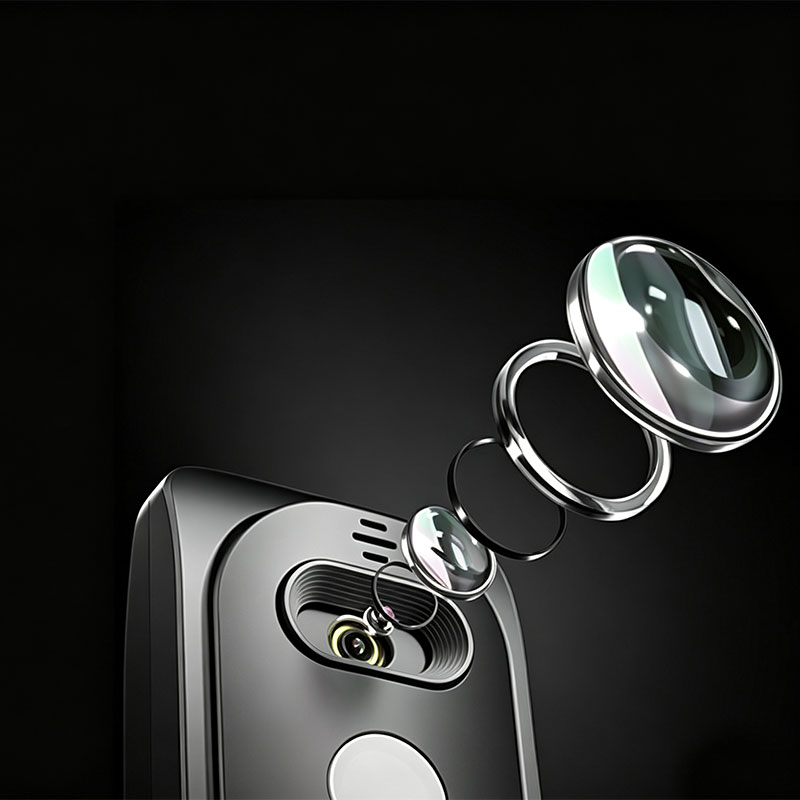
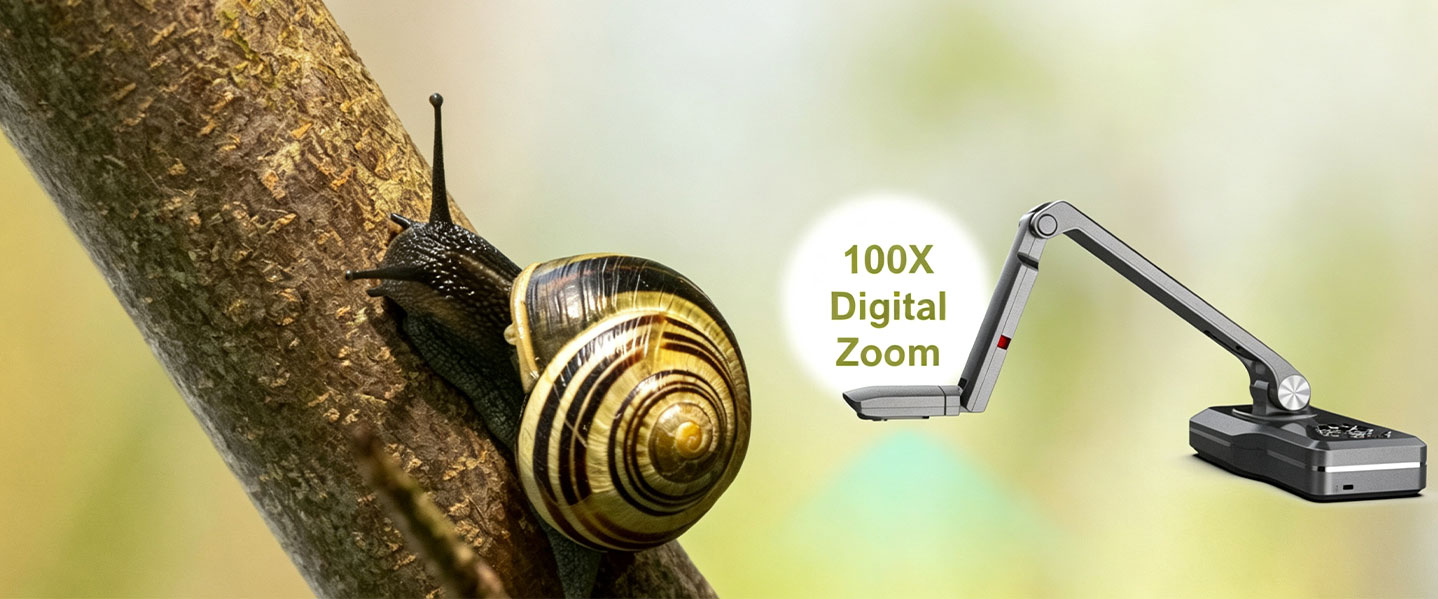
Captures 2-inch details for the precise, on-the-go presentation of small objects, artwork, and specific features.
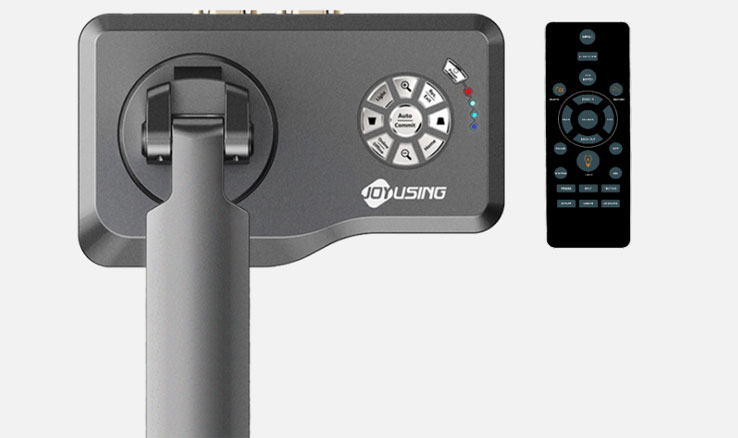
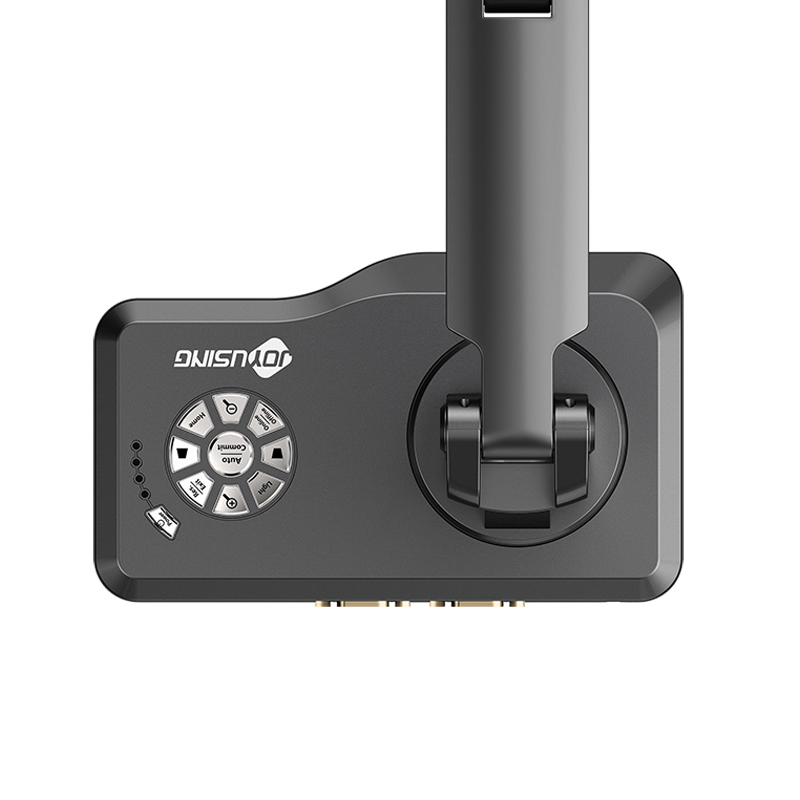
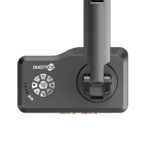
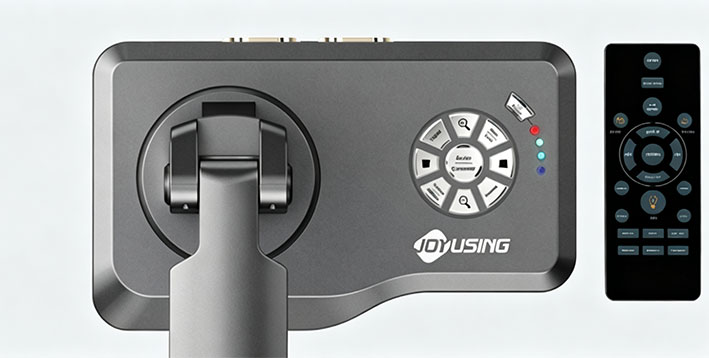
The circular action button panel located at the base of V500 provides quick access to Joyusing Visualizer software’s functions, whether in PC-free or PC-required mode, such as zooming in and out, autofocus, snapshot, etc.
Press one button to zoom, auto focus or go to the main menu, it is helpful in PC free scenario Ports available for USB/ VGA IN&OUT/ HDMI SD Card. You can always find a connection to your devices.
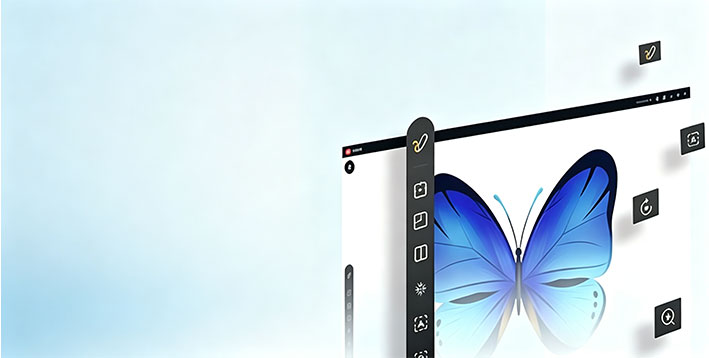
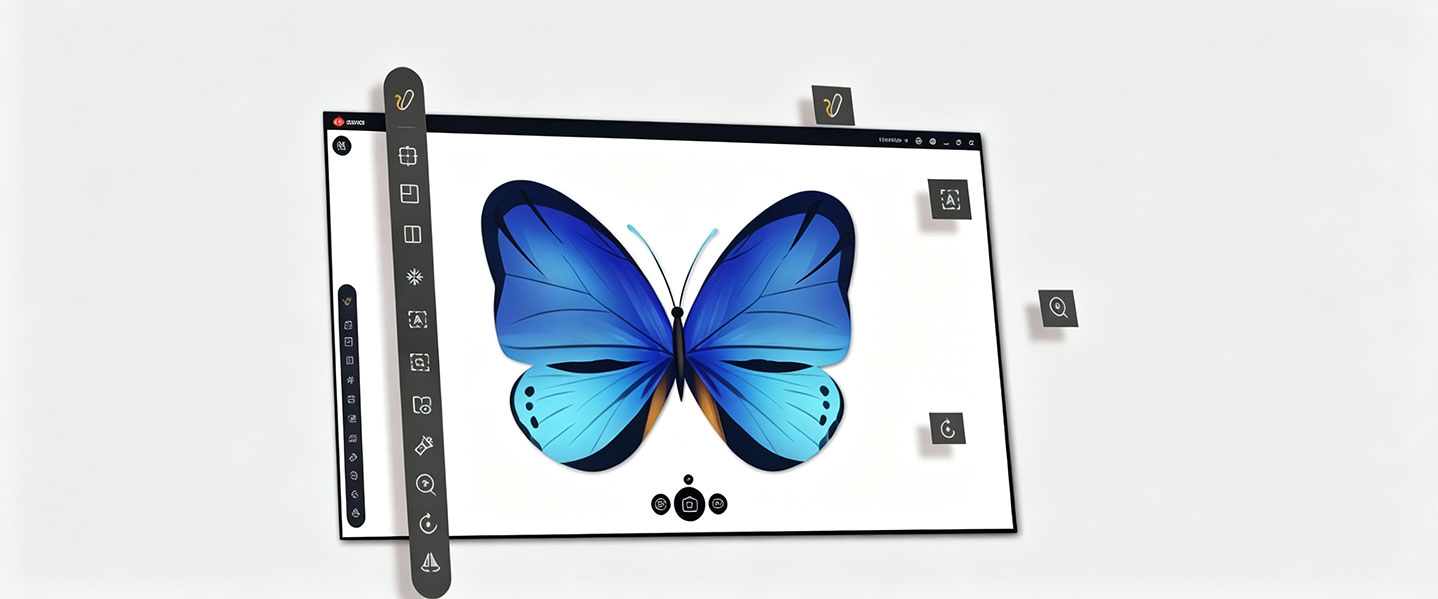
Joyusing visualizer is a software for document camera. lt is compatible with Mac, Windows. Moreover,it features PC Free software enable your display more immersive. Just direct HDMI/VAG projection to a TV, Monitor, or Projector with no computer required.
| Specifications | |
|---|---|
| Sensor | 1/3" CMOS |
| Pixels | 8.0MP |
| Resolution | Max 3264*2448; 1080P |
| Frame Rate | 1080P@30fps |
| Focus Mode | Auto/Manual |
| Zoom | 100* Digital Zoom |
| Light Source | Natural Light & LED Light |
| Shooting Area | A3 |
| Output | HDMI/VGA/USB |
| LCD Preview | No |
| PC Free Mode | Yes |
| Built-in Mic | Yes |
| Buttons | Yes |
| Battery | No |
| Kensington Slot | Yes |
| Storage | External SD Card |
| Power Supply | 12V/1A |
Generally, it is very straightforward. Most modern document cameras are "plug-and-play". For a typical setup, you plug the camera into your computer's USB port and it is automatically recognized, eliminating the need for complex driver installations. To display the image, you can connect the camera directly to a projector or display via an HDMI or VGA cable.
Yes, most models are designed for broad compatibility. They work with major operating systems like Windows, Mac, and ChromeOS. They are also compatible with popular video conferencing and presentation software such as Zoom, Google Meet, Microsoft Teams, Skype, and OBS Studio
Focus issues are often resolved by a simple "power cycle." Turn the device off, unplug the power cable, wait a few seconds, plug it back in, and power it on again. Most cameras also have an auto-focus (AF) button to quickly refocus the image, and some allow for manual focus control.
This depends on the model, but high-end document cameras offer impressive image quality. Top-tier models from Joyusing feature 4K Ultra HD resolution with powerful sensors. For instance, the Joyusing V500-4K features a 13-megapixel sensor capable of 30fps at 4K. while the V1X-4K also uses a 13-megapixel sensor for ultra-clear images. Entry-level models may have lower resolution but often still provide excellent quality for tasks like displaying worksheets.
The built-in LED lamp is extremely useful for ensuring your documents or objects are well-lit and clear, especially in low-light environments. Most models allow you to turn the light on or off with a single button. However, some users note that the "strongly suggested" lighting is key to getting a good image, so additional ambient light can be helpful.
Wireless models provide greater freedom and flexibility. They allow you to walk around the room with the camera, making it perfect for interactive classroom activities like showing a student's work or taking the class outside to explore nature. It also helps avoid the cable clutter common in presentation spaces.
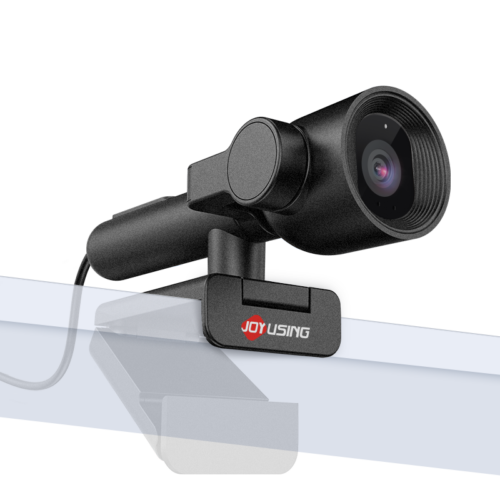
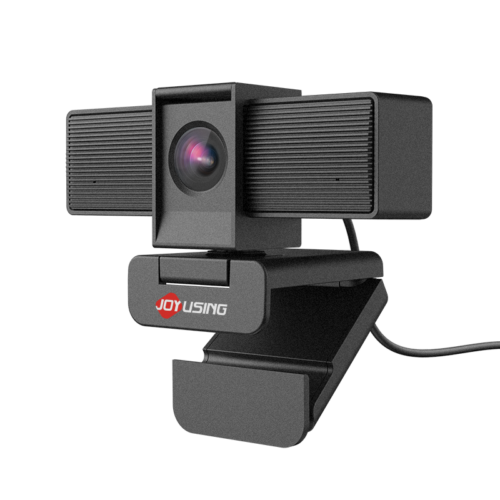
This is a common and useful feature on many portable models. Some devices, like the Joyusing V600, are designed with a rotating camera head. You flip the camera to face forward for video calls and flip it back down to point at your desk for documents. Other models, like the Joyusing V513, feature an adjustable arm that can be positioned to point at the user or down at a document.
Modern document cameras are powerful interactive tools. With the included software (like Joyusing's free Visualizer), you can do much more than just display. You can:
Annotate: Draw or write directly on the live image.
Record: Capture video of your lesson or presentation with audio.
Use Smart Features: Some software integrates with ABBYY, allowing you to identify objects, translate text in real-time, or extract text using Optical Character Recognition (OCR).
Try the following steps:

United States (English)

France (French)

Portugal (Portuguese)

Spain (Spanish)
No.20 Building, Haixi Innovation Science Park, Wulongjiang Central Avenue, High-tech District, Fuzhou, Fujian 350108, China.