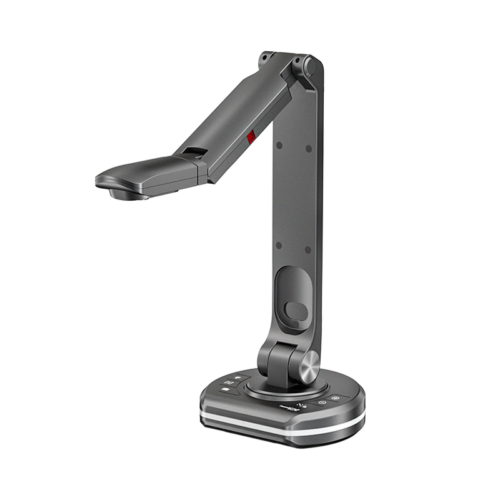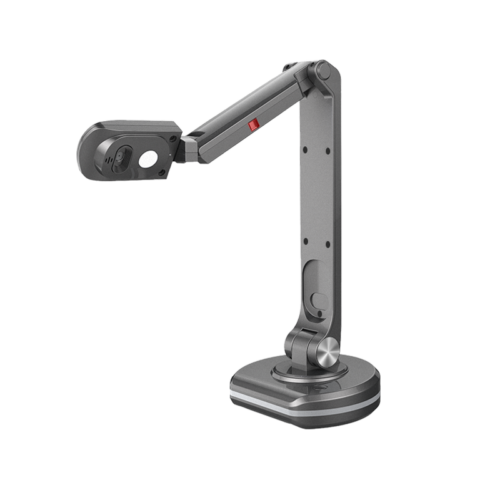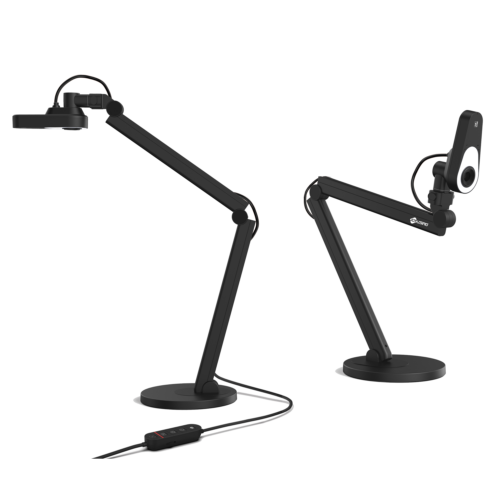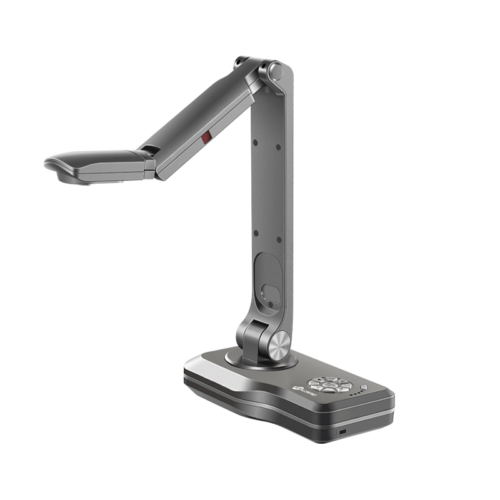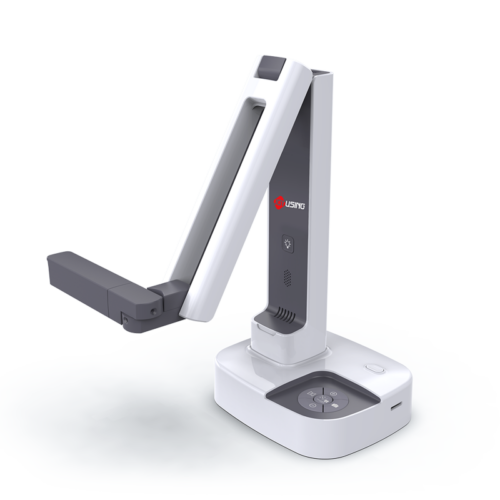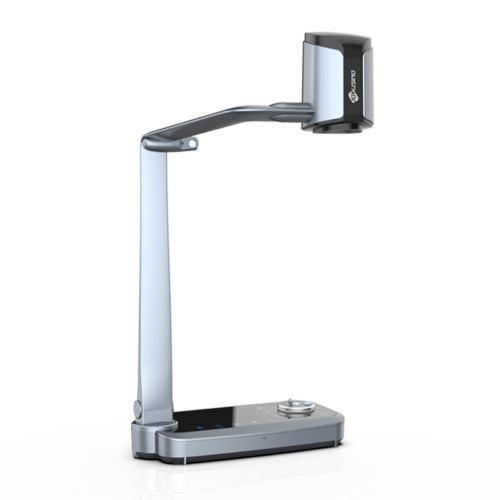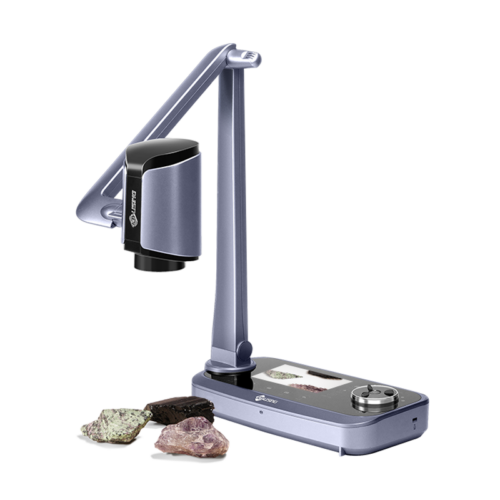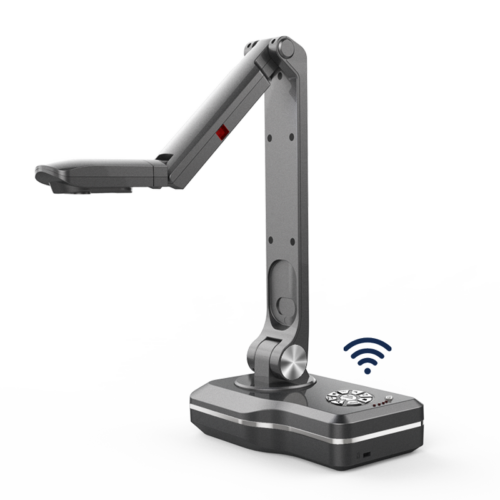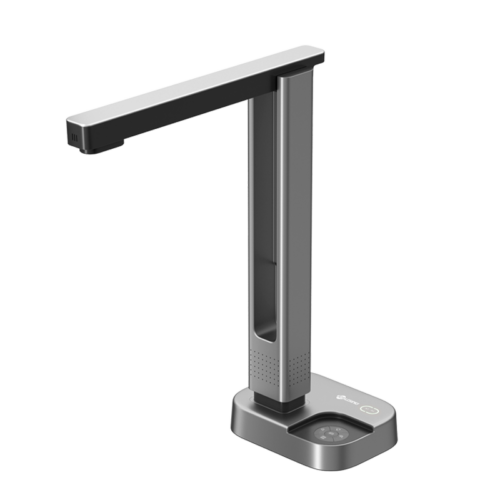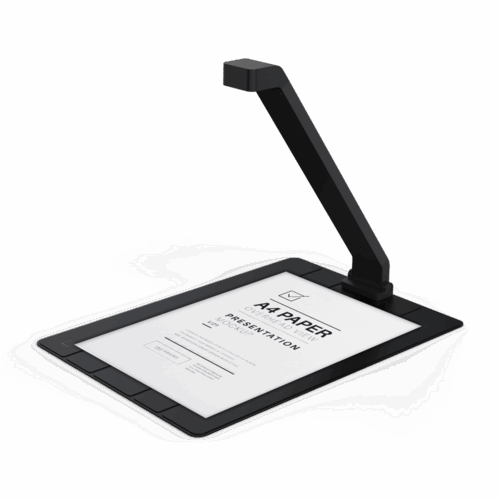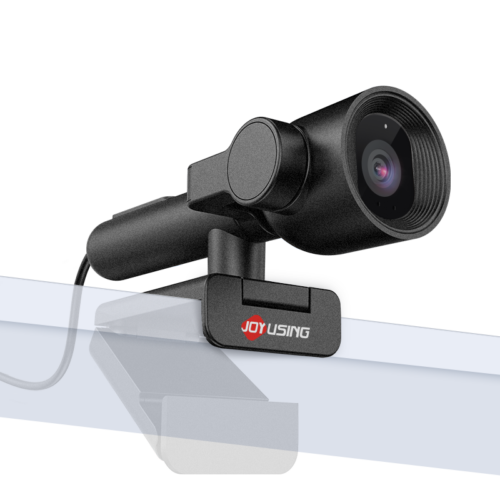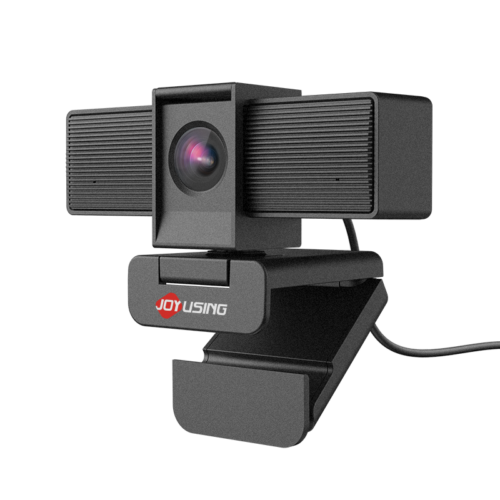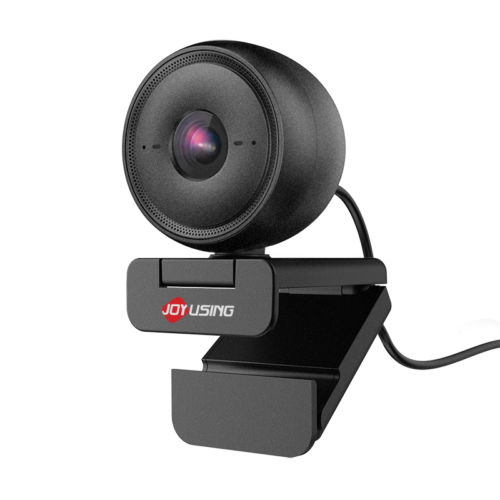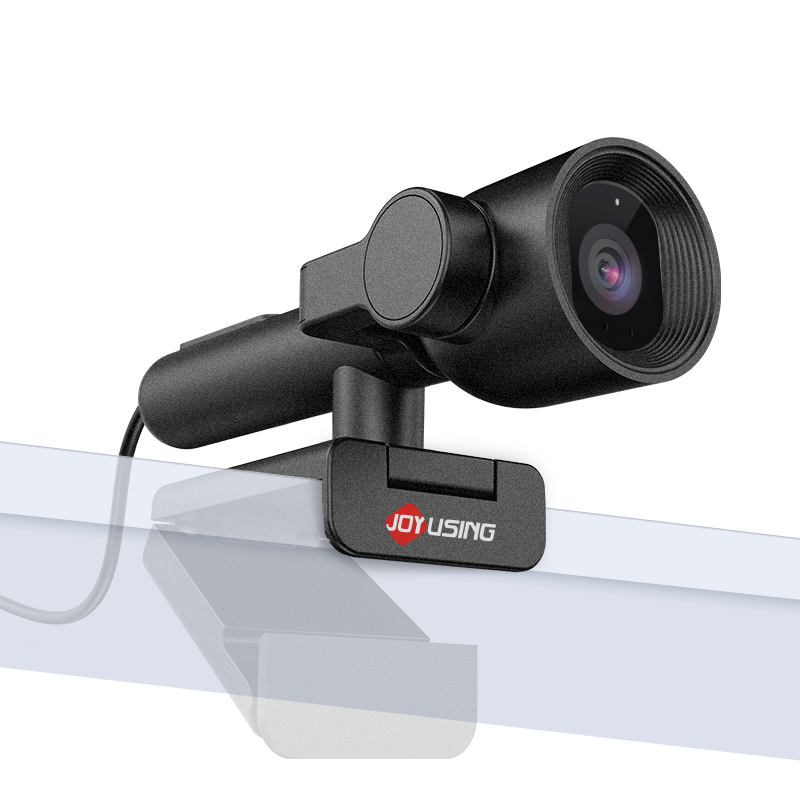
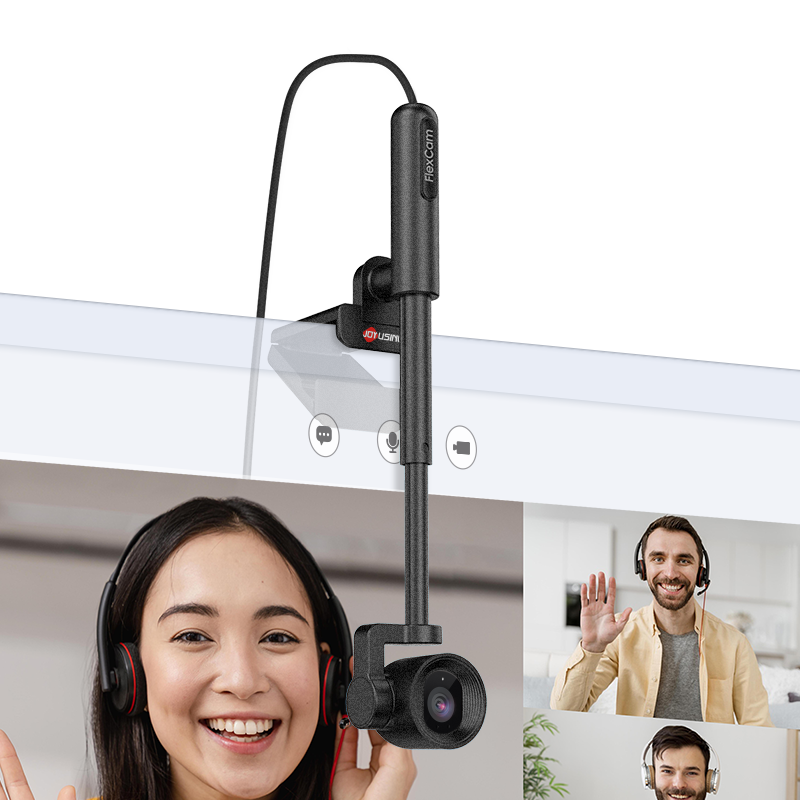
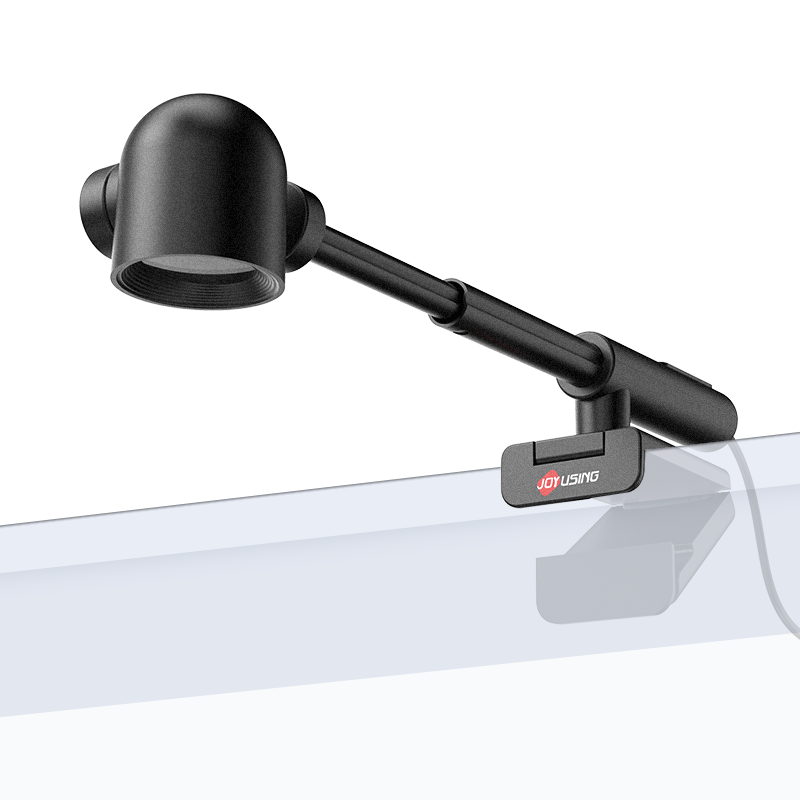
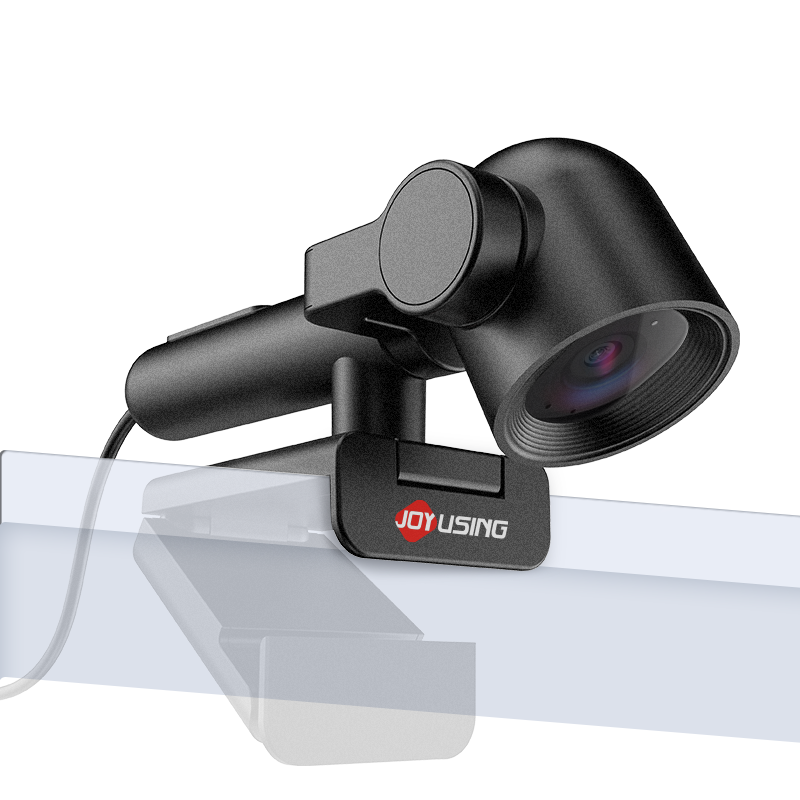
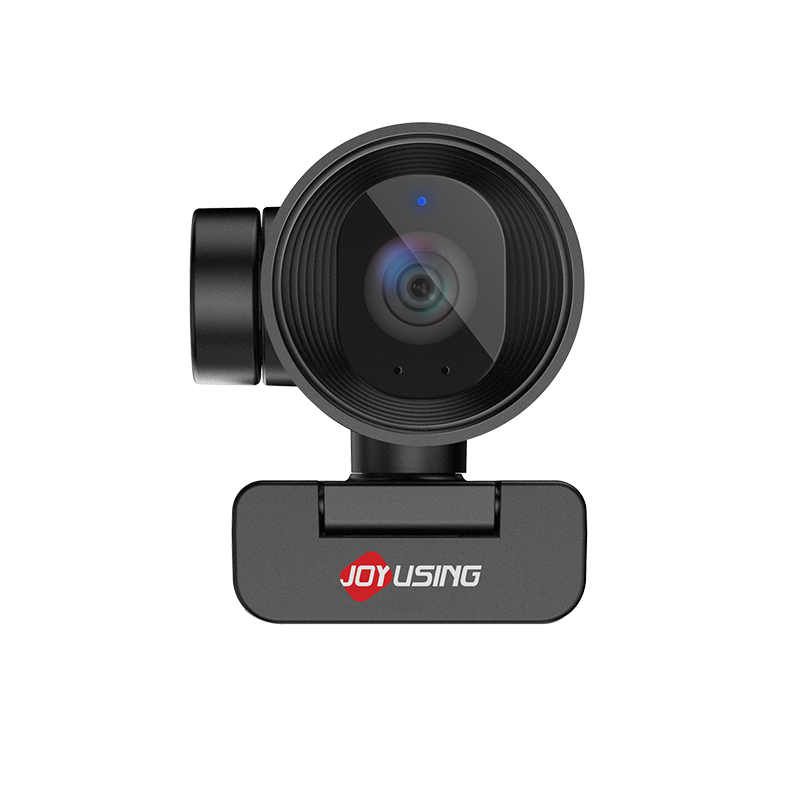
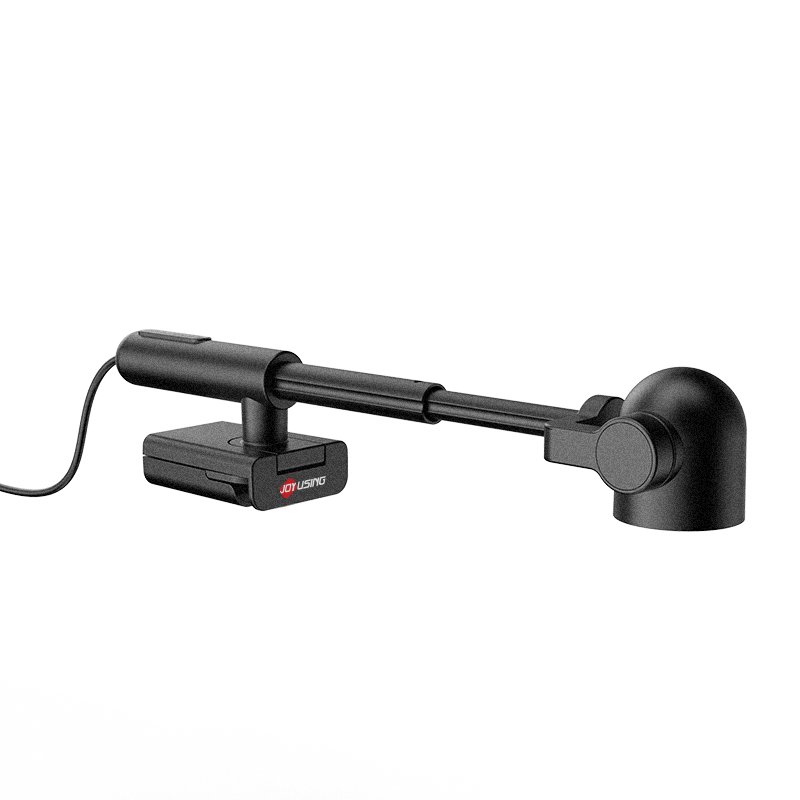
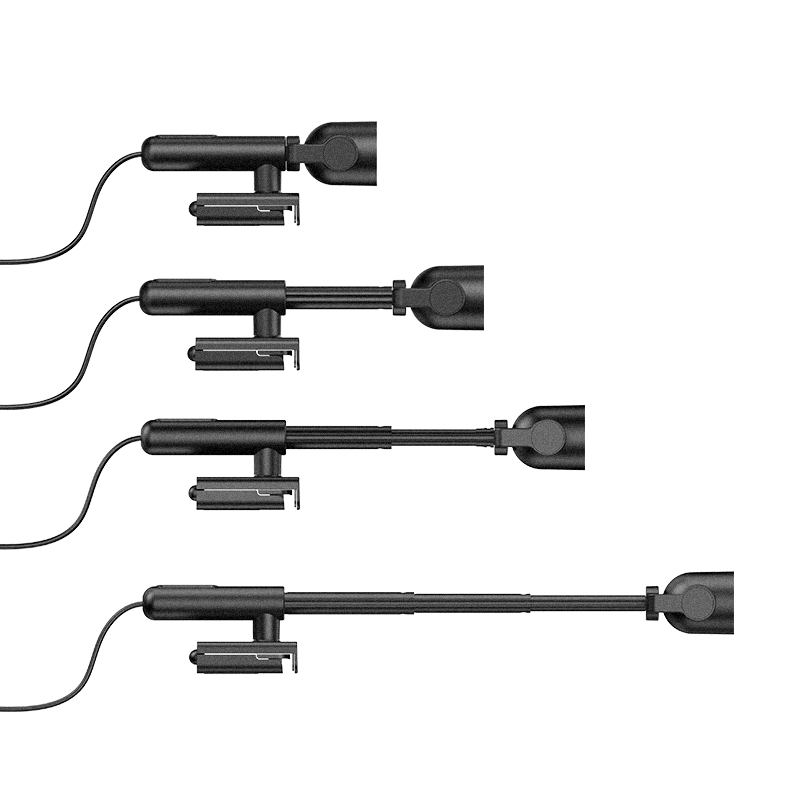
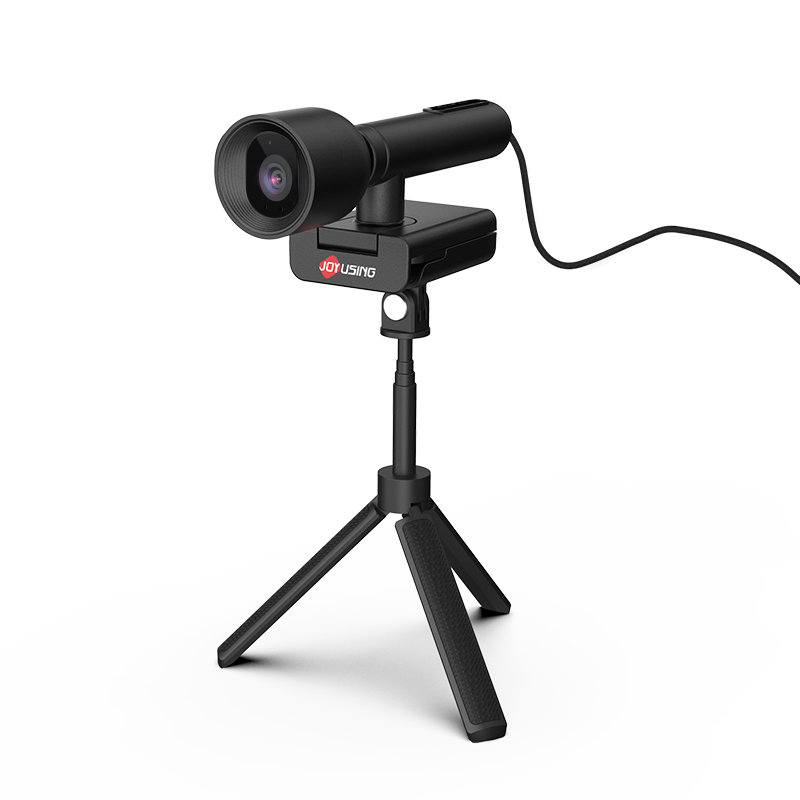
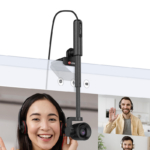
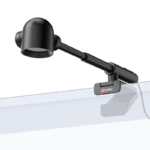
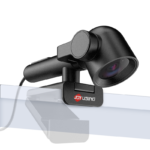
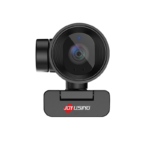
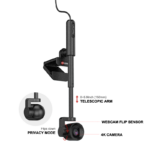
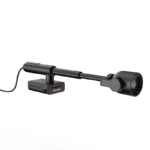
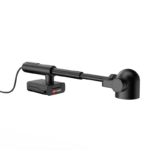
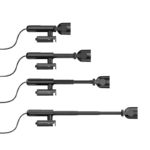
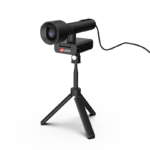
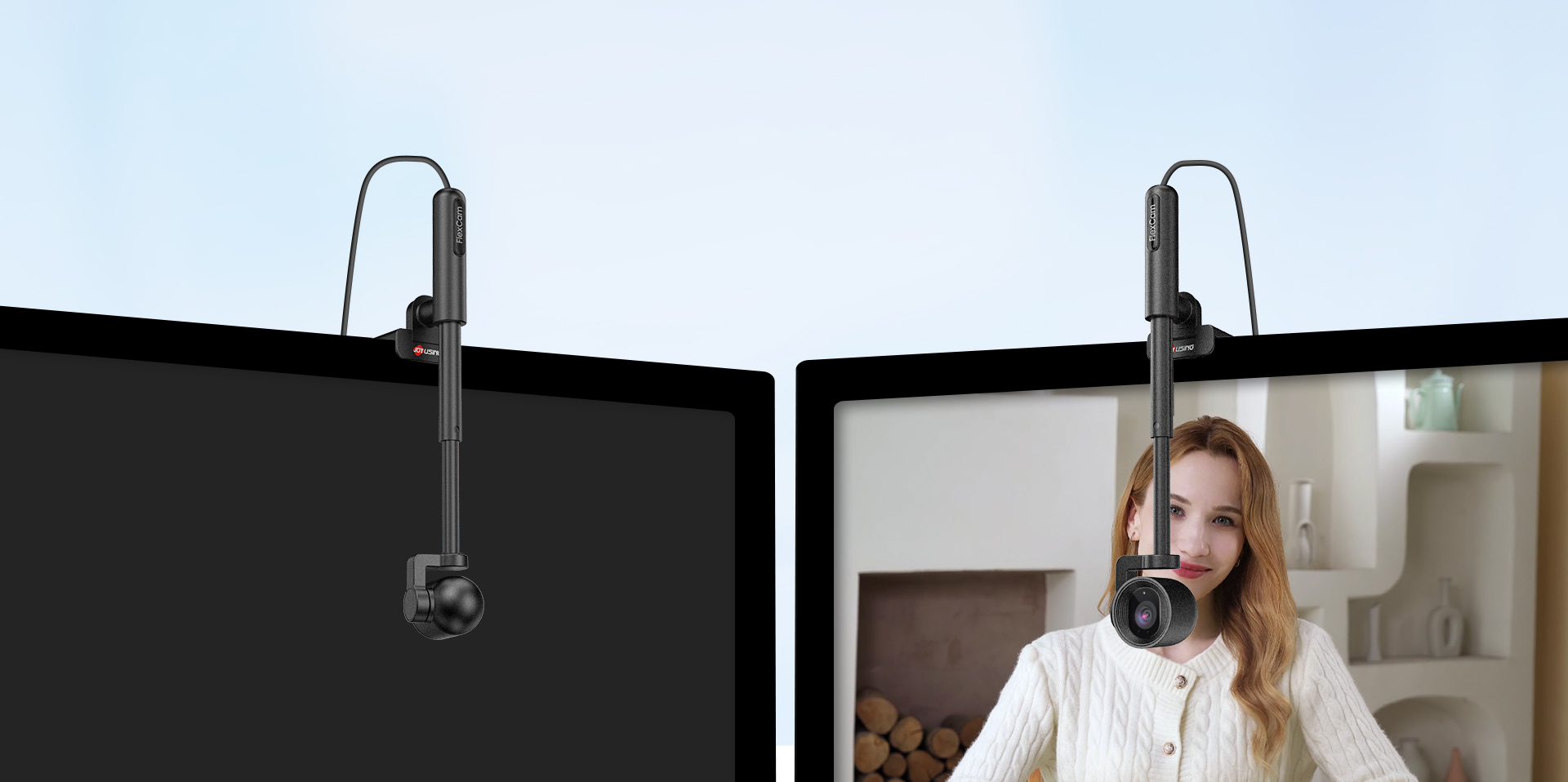
Joyusing Flexcam 10 offers 4K clarity with PDAF-driven fast autofocus. It excels in eye-contact-rich Center View and versatile Table View modes, ensuring engaging, sharp visuals for every scenario.
Flex Your View More Angles & Positions.
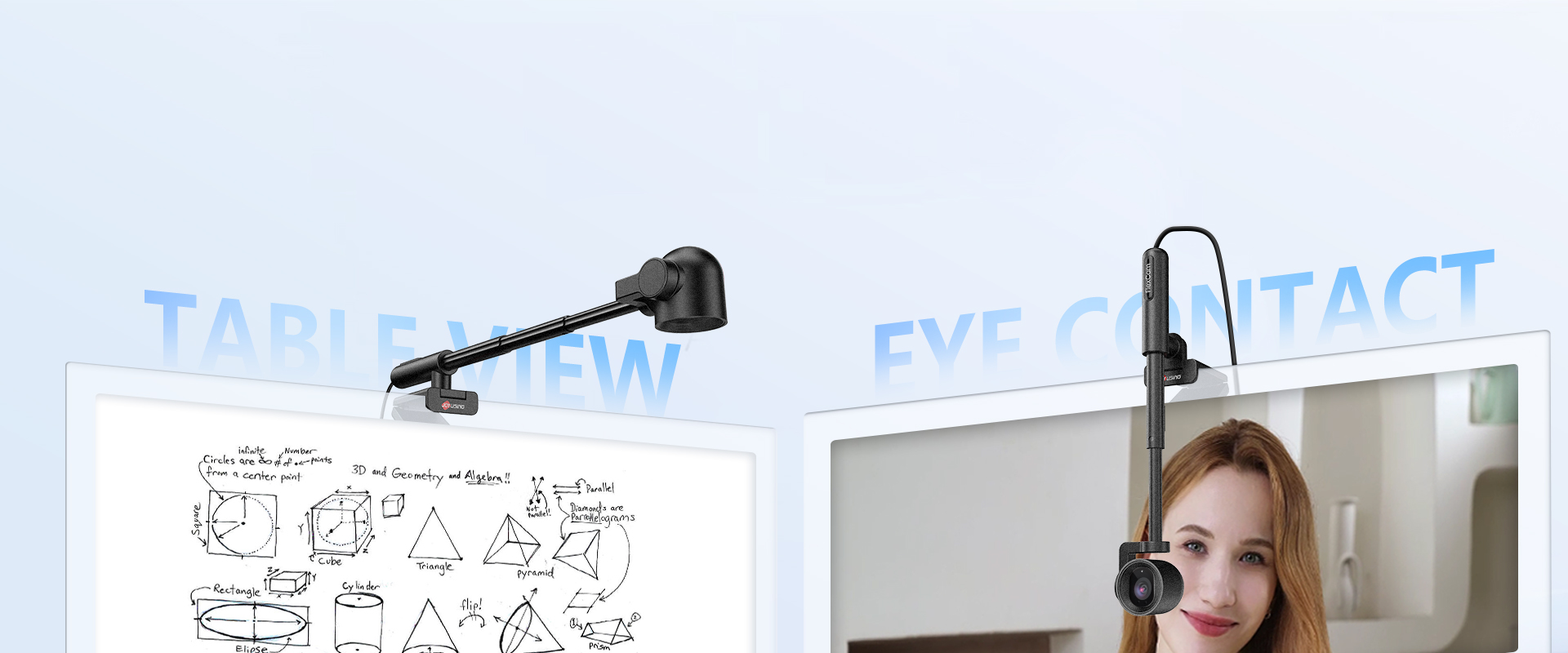
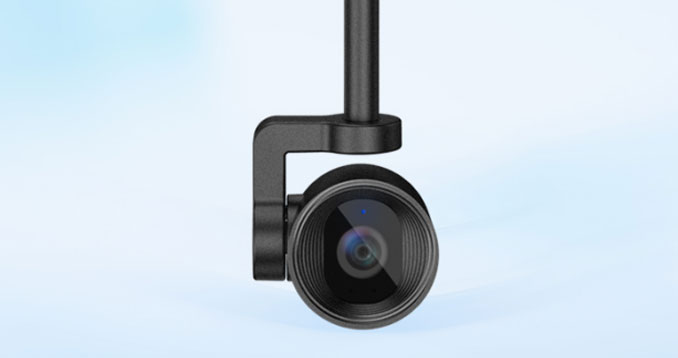


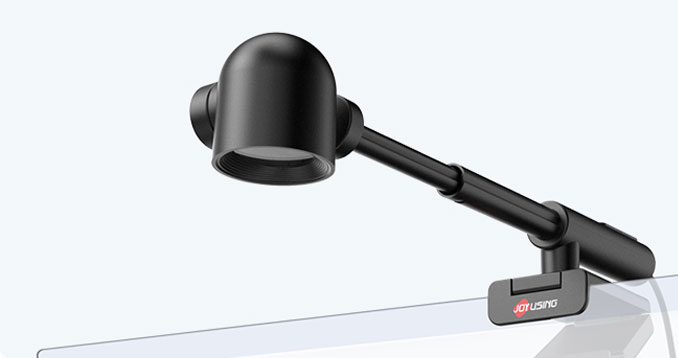

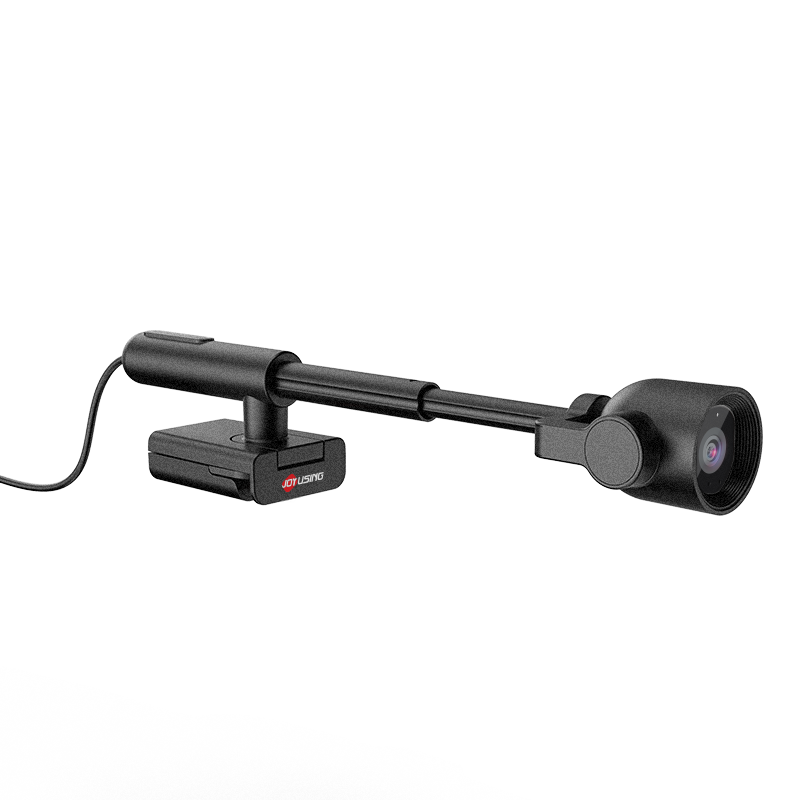
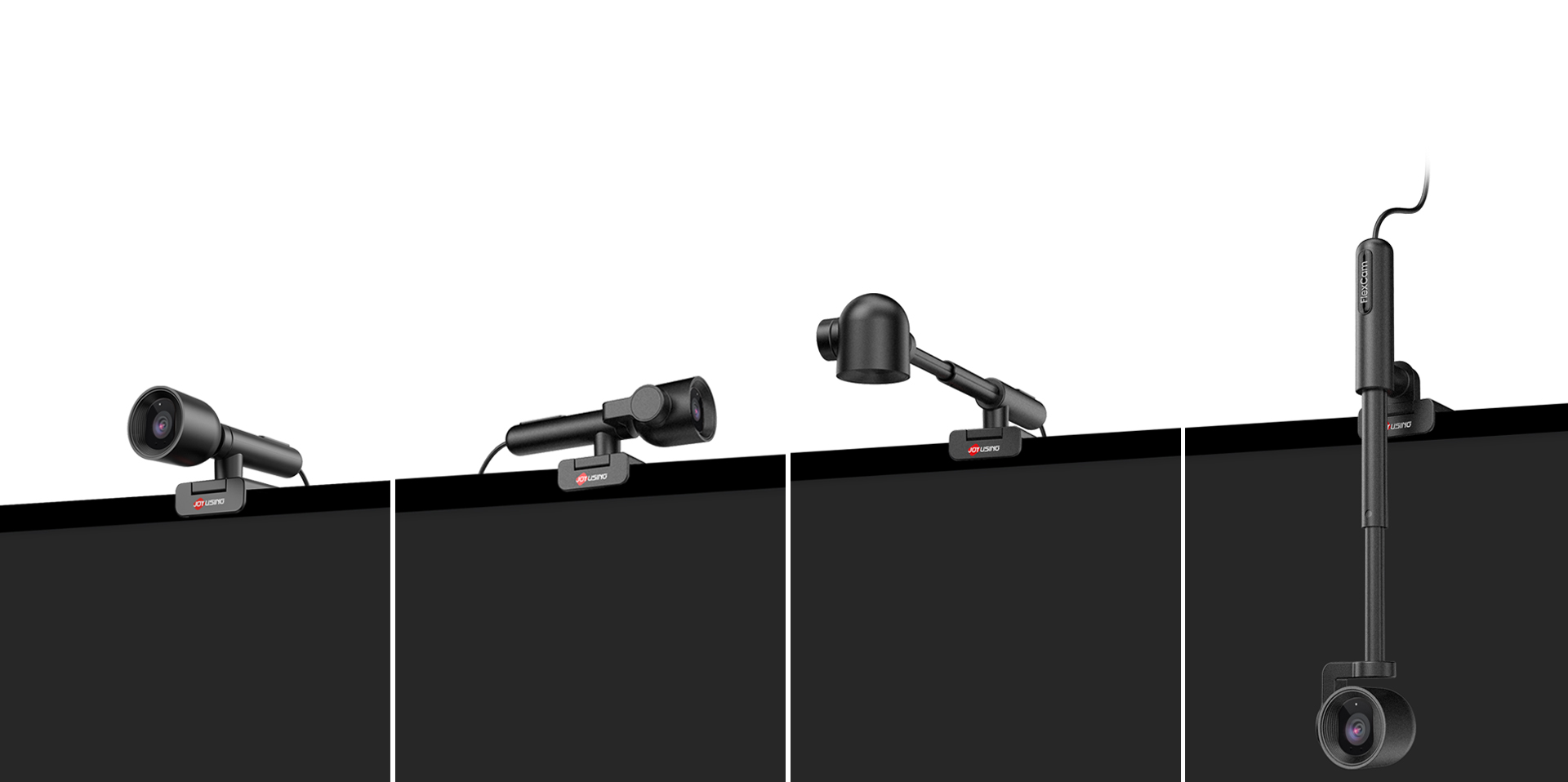
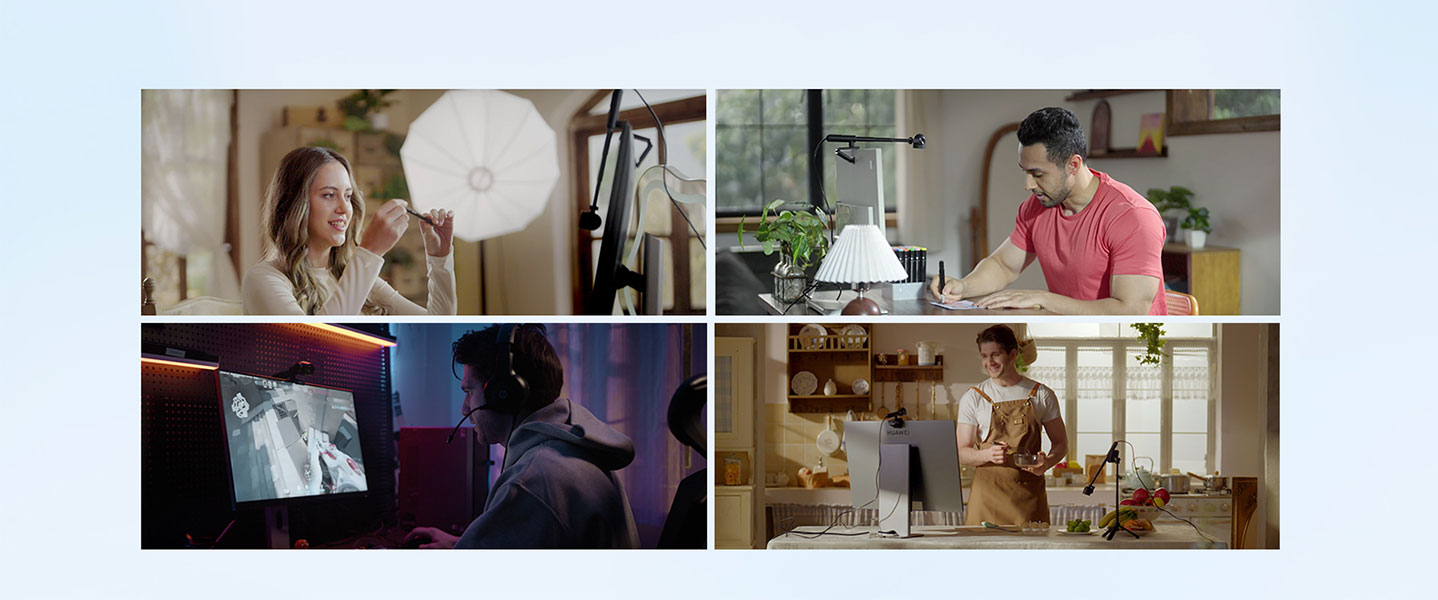
A single webcam unlocks 4 usage modes - perfect for every scenario.
Consistent 4K clarity: sharp, smooth video for work calls, family chats, and live streams alike.
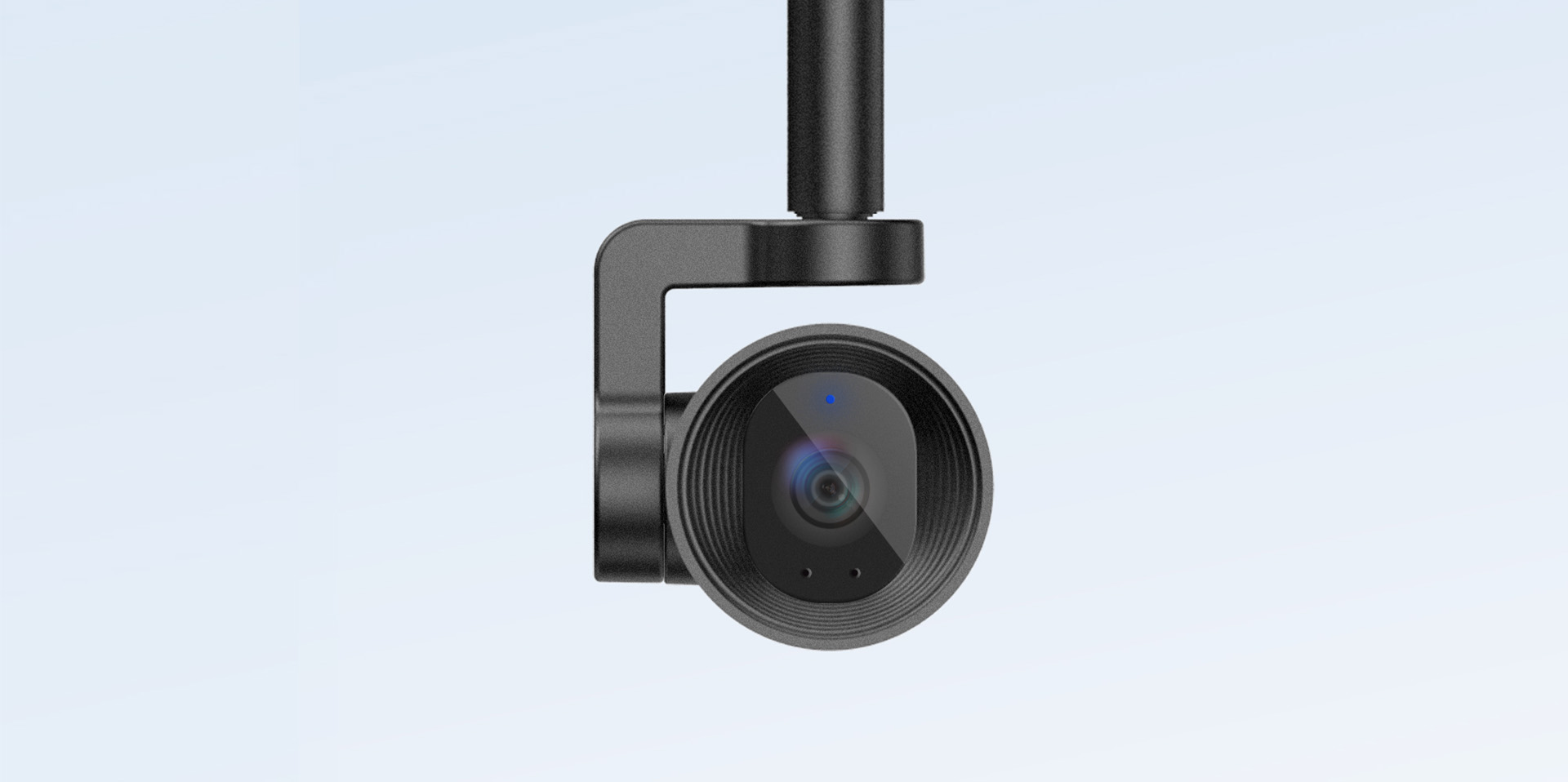
Eye contact amplifies engagement, strengthens memory retention, and fosters trust.
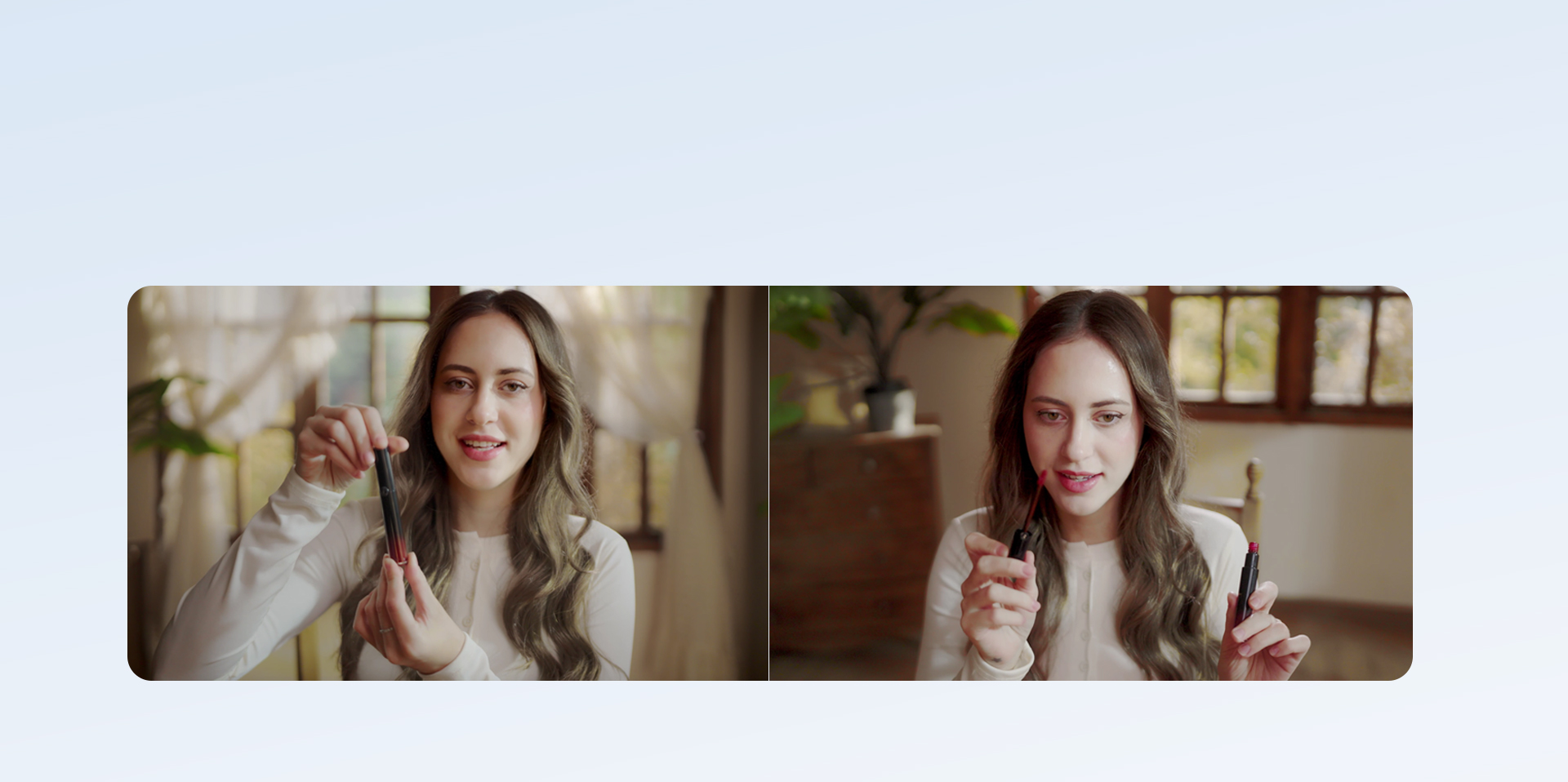
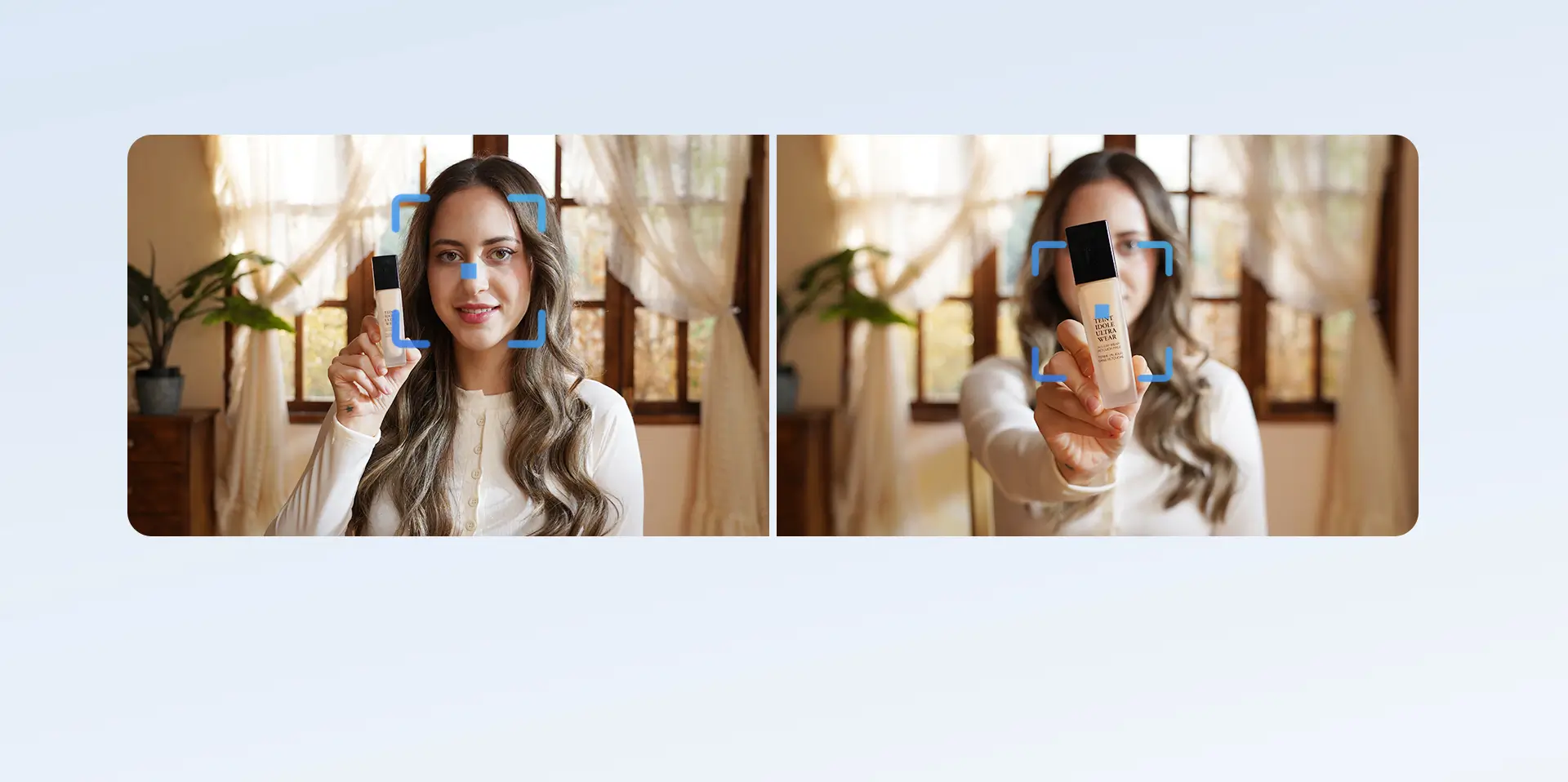
The advanced autofocus system adjusts the lens smoothly, keeping focus consistently sharp for crisp results in every shot.
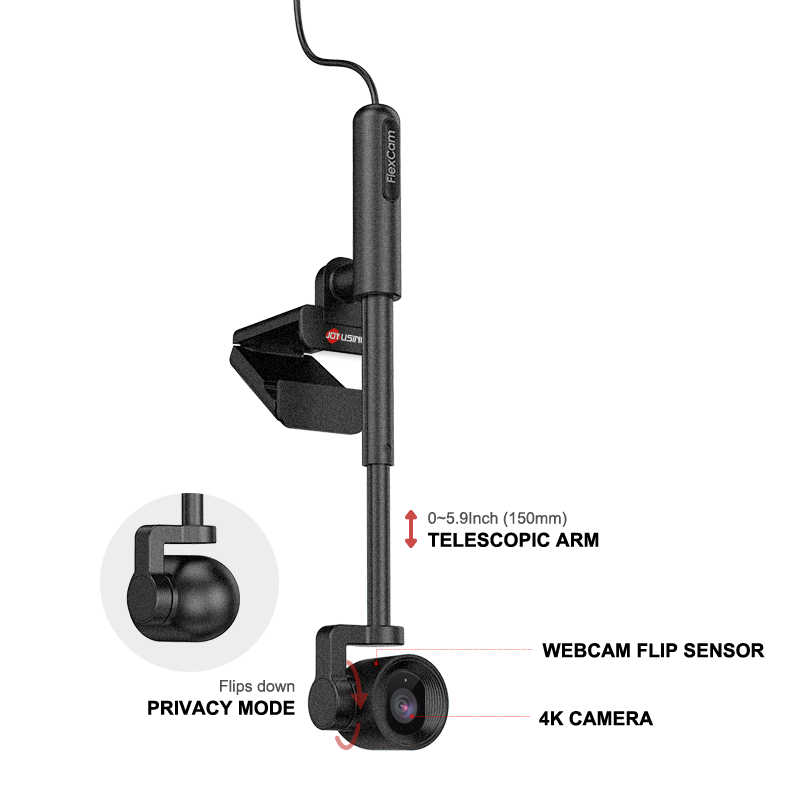
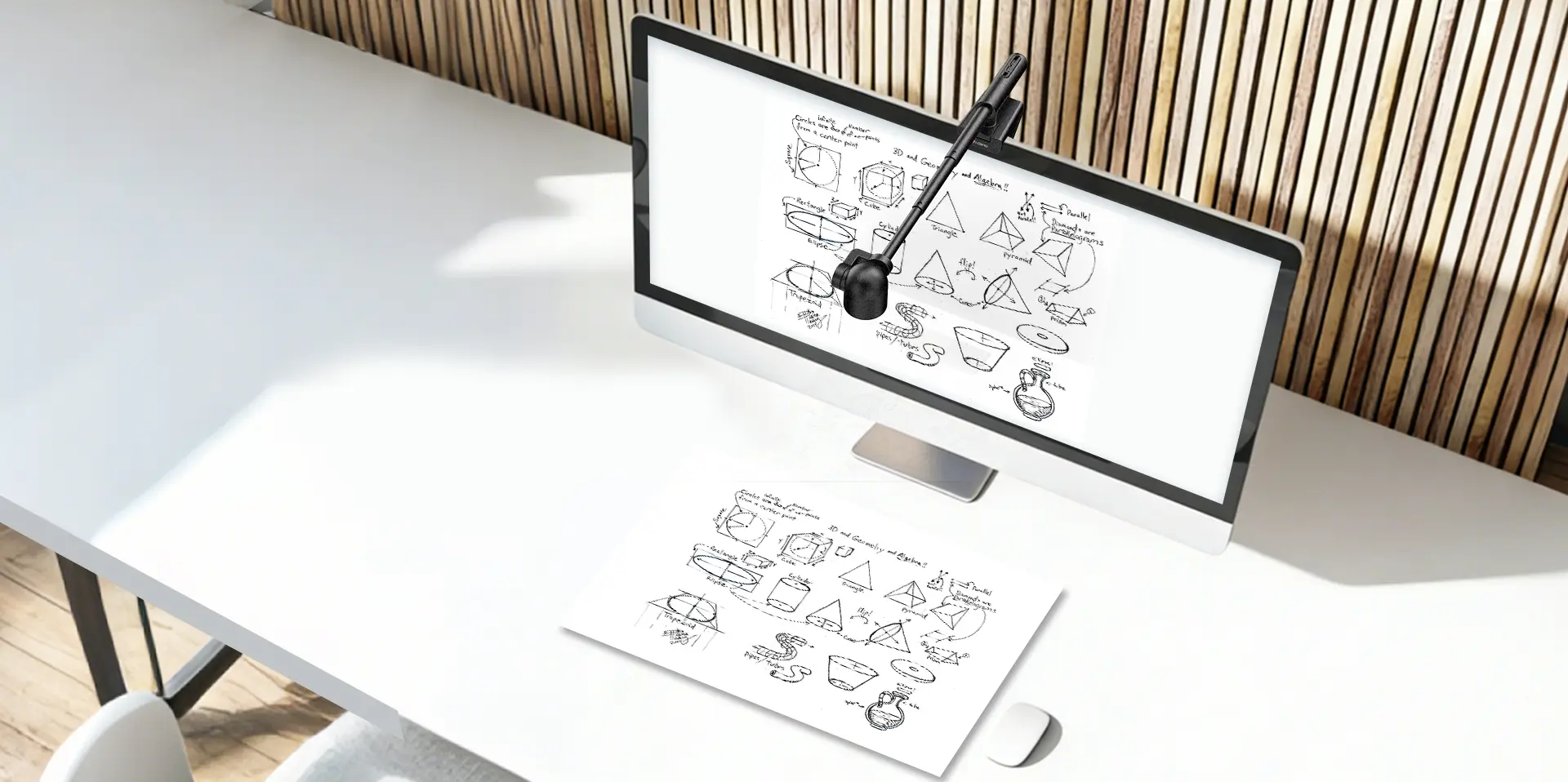
Built-in smart sensor auto-detects cameras, offering portrait and desk view modes.
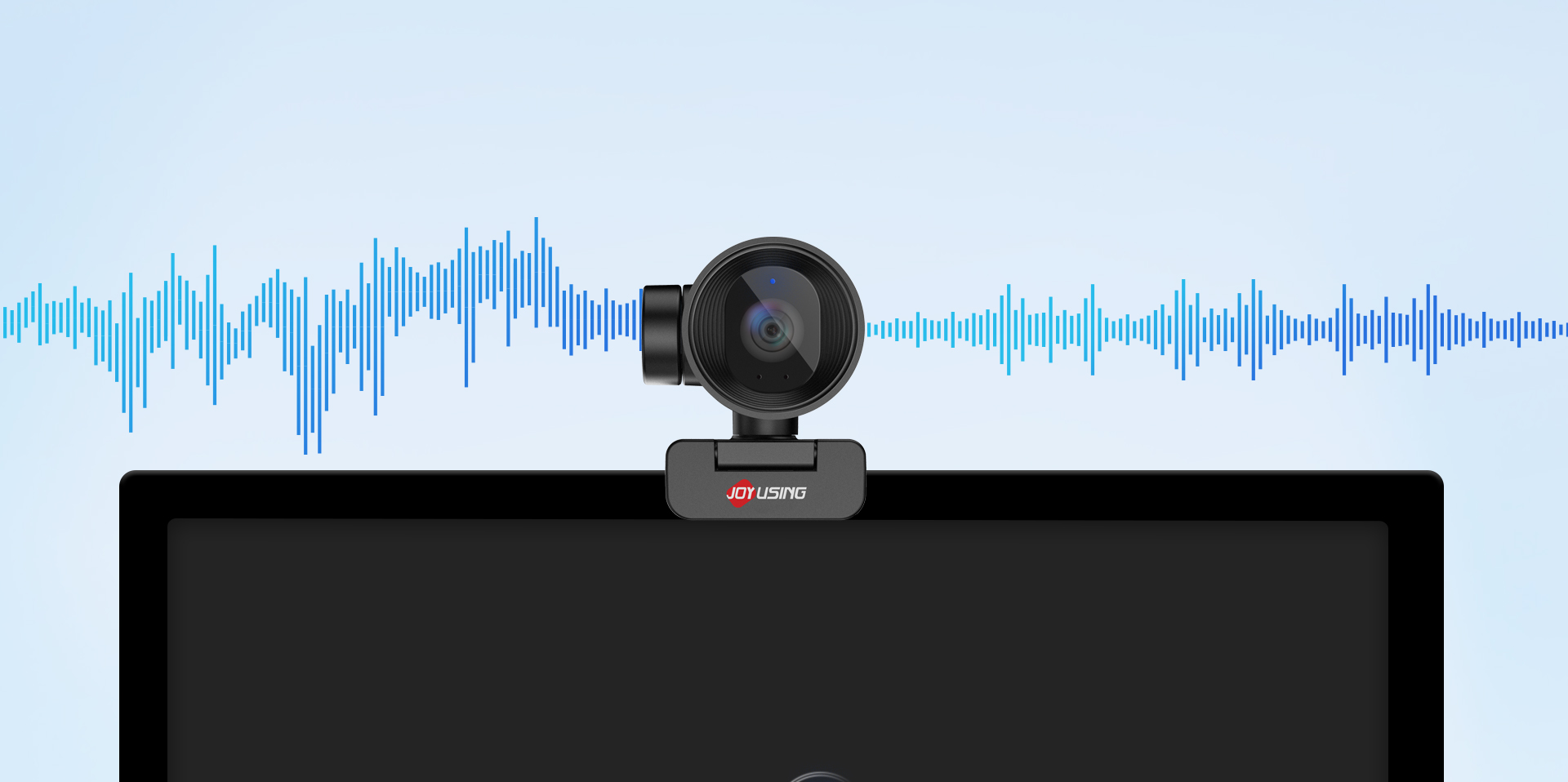
Al-enhanced built-in two mics cuts background noise, ensuring clear voice transmission for online meetings.
The camera rotates 180 degrees and flips inward toward the screen to protect your privacy.
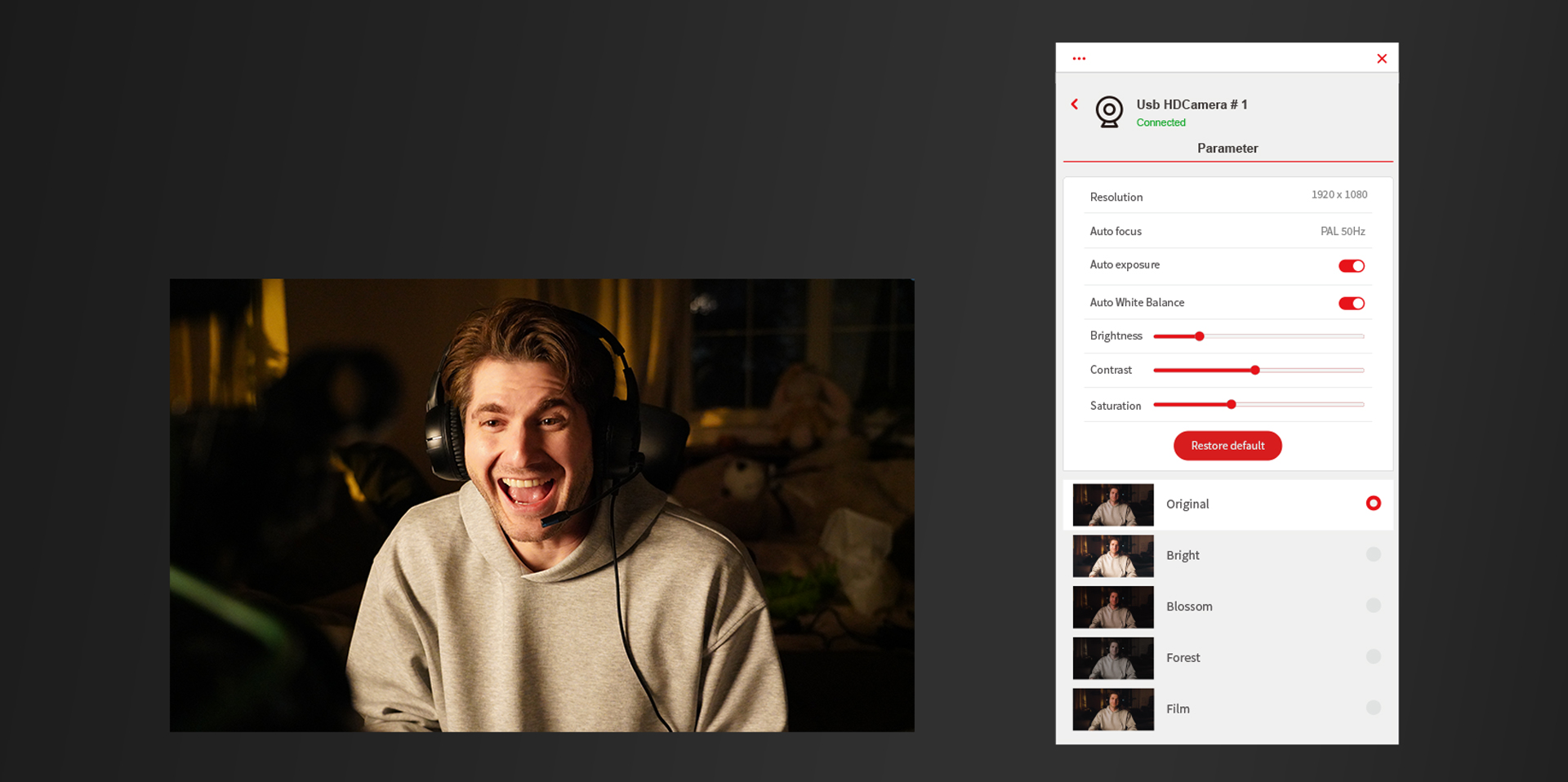
Make your webcam work the way you work. Customize a wide range of settings for brightness, contrast, saturation, and etc.
Rotate the built-in privacy shutter to block the camera when inactive, spin to open for clear lens access during meetings.
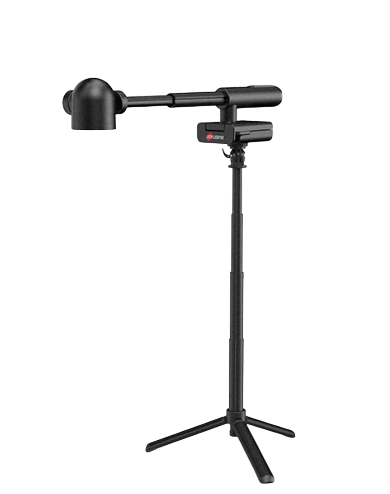
It provides a 1/4-inch tripod hole that is compatible with a universal tripod for object shooting.
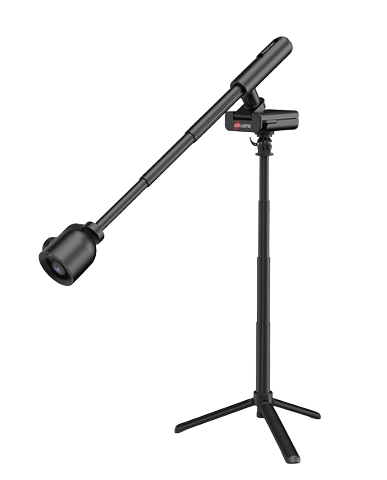
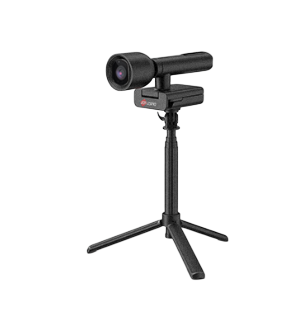
Generally, it is very straightforward. Most modern document cameras are "plug-and-play". For a typical setup, you plug the camera into your computer's USB port and it is automatically recognized, eliminating the need for complex driver installations. To display the image, you can connect the camera directly to a projector or display via an HDMI or VGA cable.
Yes, most models are designed for broad compatibility. They work with major operating systems like Windows, Mac, and ChromeOS. They are also compatible with popular video conferencing and presentation software such as Zoom, Google Meet, Microsoft Teams, Skype, and OBS Studio
Focus issues are often resolved by a simple "power cycle." Turn the device off, unplug the power cable, wait a few seconds, plug it back in, and power it on again. Most cameras also have an auto-focus (AF) button to quickly refocus the image, and some allow for manual focus control.
This depends on the model, but high-end document cameras offer impressive image quality. Top-tier models from Joyusing feature 4K Ultra HD resolution with powerful sensors. For instance, the Joyusing V500-4K features a 13-megapixel sensor capable of 30fps at 4K. while the V1X-4K also uses a 13-megapixel sensor for ultra-clear images. Entry-level models may have lower resolution but often still provide excellent quality for tasks like displaying worksheets.
The built-in LED lamp is extremely useful for ensuring your documents or objects are well-lit and clear, especially in low-light environments. Most models allow you to turn the light on or off with a single button. However, some users note that the "strongly suggested" lighting is key to getting a good image, so additional ambient light can be helpful.
Wireless models provide greater freedom and flexibility. They allow you to walk around the room with the camera, making it perfect for interactive classroom activities like showing a student's work or taking the class outside to explore nature. It also helps avoid the cable clutter common in presentation spaces.
This is a common and useful feature on many portable models. Some devices, like the Joyusing V600, are designed with a rotating camera head. You flip the camera to face forward for video calls and flip it back down to point at your desk for documents. Other models, like the Joyusing V513, feature an adjustable arm that can be positioned to point at the user or down at a document.
Modern document cameras are powerful interactive tools. With the included software (like Joyusing's free Visualizer), you can do much more than just display. You can:
Annotate: Draw or write directly on the live image.
Record: Capture video of your lesson or presentation with audio.
Use Smart Features: Some software integrates with ABBYY, allowing you to identify objects, translate text in real-time, or extract text using Optical Character Recognition (OCR).
Try the following steps:

United States (English)

France (French)

Portugal (Portuguese)

Spain (Spanish)
No.20 Building, Haixi Innovation Science Park, Wulongjiang Central Avenue, High-tech District, Fuzhou, Fujian 350108, China.